Problem Explanation
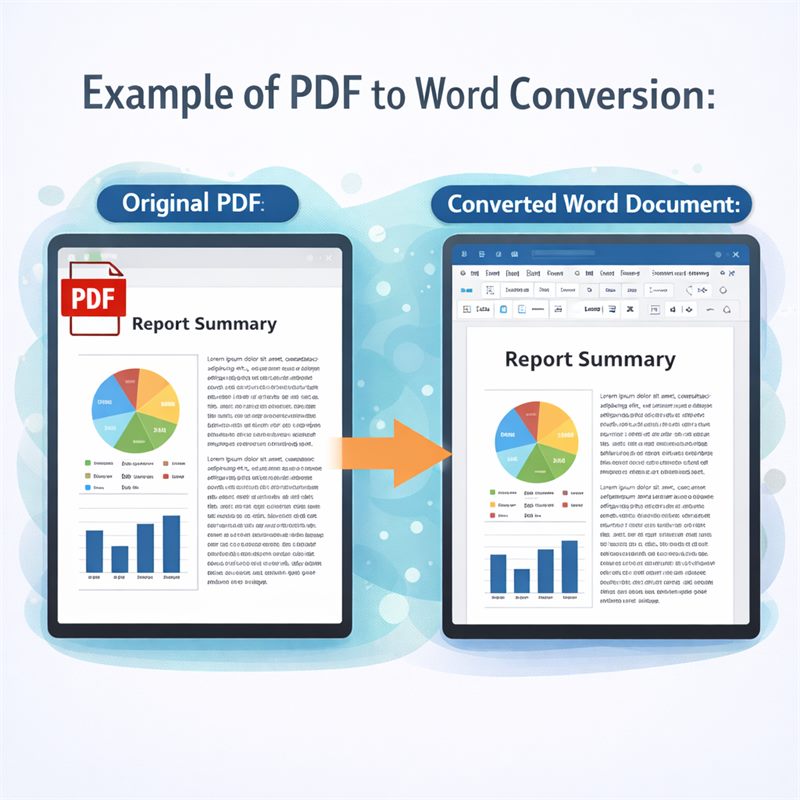
PDF (Portable Document Format) is designed to preserve document formatting across different platforms, making it ideal for sharing finalized documents. However, its locked nature makes editing difficult. Word documents (DOC/DOCX) are designed for easy editing and collaboration. Converting PDF to Word allows users to modify content, update information, and reuse text in other applications.
People commonly face difficulties when converting PDFs to Word, such as formatting disruption, image and graphic issues, table distortion, font substitution, text recognition errors, content loss, layout collapse, and permission blocks. These issues occur because PDFs are designed to preserve layout exactly as intended, making them resistant to editing, while Word uses a flow-based model that doesn't directly translate PDF formatting.
Different PDF types present unique challenges. Digital PDFs, created directly from applications like Word or Excel, generally convert well but may still have formatting issues. Scanned PDFs contain only images of text, requiring OCR (Optical Character Recognition) technology for conversion. Complex PDFs include advanced elements like forms, interactive buttons, or multimedia that don't translate to Word. Secured PDFs are protected by passwords or permissions that restrict content extraction.
Step-by-Step Solutions
Convert PDF to Word on Windows
The most common methods for converting PDFs to Word documents on Windows operating systems.
Method 1: Microsoft Word (Free, Built-In)
- Open Microsoft Word
- Click File → Open
- Select the PDF file
- Word will display a warning: "PDF will be converted to editable Word"
- Click OK
- Wait while Word reconstructs the layout
- Edit the document as needed
- Save as .docx
Method 2: Adobe Acrobat Pro DC (Paid)
- Open the PDF in Adobe Acrobat
- Go to File → Export To → Microsoft Word
- Choose Word Document (.docx) or Word 97–2003 (.doc)
- Acrobat analyzes layout and fonts
- Save the Word file
When to use this method:
- When you need to convert PDFs on a Windows computer
- For simple digital PDFs with minimal formatting
- When you want a free solution using Microsoft Word
- For professional results with complex layouts using Adobe Acrobat
Convert PDF to Word on Mac
Effective methods for converting PDFs to Word documents on macOS.
Method 1: Using Microsoft Word for Mac
- Open Microsoft Word
- Click File → Open
- Select the PDF file
- Click OK when prompted about conversion
- Edit the document
- Save as .docx
Method 2: Using Google Docs (Free)
- Upload the PDF to Google Drive
- Right-click the file → Open with Google Docs
- Google Docs will convert the PDF
- Click File → Download → Microsoft Word (.docx)
When to use this method:
- When you need to convert PDFs on a Mac computer
- For text-heavy documents with simple formatting
- When you want a free solution using Google Docs
- When you don't have access to specialized conversion software
Convert Scanned PDFs Using OCR
Specialized methods for converting scanned PDFs that contain images of text rather than actual text characters.
Method 1: Adobe Acrobat Pro DC (Paid)
- Open the scanned PDF in Acrobat
- Go to Tools → Scan & OCR
- Select "Recognize Text" → "In This File"
- Choose output settings and click Recognize
- After OCR, go to File → Export To → Microsoft Word
Method 2: Google Drive + Google Docs (Free)
- Upload the scanned PDF to Google Drive
- Right-click → Open with Google Docs
- Google automatically performs OCR
- Download as Word document
Method 3: ABBYY FineReader PDF (Paid)
- Open ABBYY FineReader
- Open the scanned PDF
- Click "Convert to Microsoft Word"
- Select OCR language and settings
- Start conversion and save the Word file
When to use this method:
- When you need to convert scanned documents or images
- For documents with poor-quality text or handwritten content
- When you need the highest OCR accuracy
- For converting large volumes of scanned documents
Online Conversion Tools
Web-based solutions for quick PDF to Word conversion without installing software.
Method 1: Smallpdf (Free with limitations)
- Upload PDF to Smallpdf.com
- Select "PDF to Word" converter
- Wait for conversion
- Download the Word file
Method 2: iLovePDF (Free with limitations)
- Visit iLovePDF.com
- Select "PDF to Word" tool
- Upload file and convert
- Download the result
When to use this method:
- When you need a quick conversion without installing software
- For simple documents with sensitive information (use with caution)
- When you're working on a public or shared computer
- For occasional conversion needs
Programming Solutions
Advanced methods for technical users who need to automate PDF to Word conversion.
Method 1: Python with PyPDF2 and pdf2docx
- Install required Python libraries: PyPDF2 and pdf2docx
- Write a script to read the PDF file
- Use pdf2docx to convert PDF to Word
- Save the output as a .docx file
Method 2: Adobe PDF Services API
- Sign up for Adobe PDF Services API
- Get API credentials and set up authentication
- Make API calls to convert PDF to Word
- Process the returned Word document
When to use this method:
- When you need to convert large volumes of PDFs automatically
- For integration with existing applications or workflows
- When you need custom processing of converted documents
- For enterprise-level document processing systems
Helpful Tools
These reliable tools offer different approaches to PDF to Word conversion with unique features for various needs.
Key Features:
- Preserves formatting, tables, and images
- Advanced OCR for scanned documents
- Batch processing of multiple files
- Export to various formats including Word
Key Features:
- Directly open and convert PDF files
- Preserves basic text formatting
- No additional software required
- Integrated with Word's editing features
Key Features:
- OCR support for scanned PDFs
- No software installation required
- Cloud-based storage and access
- Collaboration features
Key Features:
- Superior OCR accuracy
- Supports 190+ languages
- Preserves document structure and formatting
- Batch processing capabilities
Key Features:
- Accurate PDF to Word conversion
- OCR for scanned documents
- Batch processing
- Advanced PDF editing tools
Key Features:
- Drag-and-drop interface
- Basic OCR capabilities
- Cloud storage integration
- Mobile-friendly design
Key Features:
- Simple conversion process
- OCR for scanned documents
- Google Drive integration
- Batch processing for premium users
Key Features:
- PDF to Word conversion
- OCR for scanned documents
- Cross-platform compatibility
- Form creation and data extraction
Key Features:
- PDF to Word conversion
- OCR capabilities
- Cloud storage integration
- Collaboration tools
Key Features:
- High-quality conversion
- Preserves formatting and images
- Batch conversion support
- No watermarks on output
Common Mistakes to Avoid
- Using the wrong conversion method: Different PDF types require different approaches. Using a basic converter for a scanned PDF without OCR capabilities will result in poor quality.
- Ignoring security restrictions: Attempting to convert secured PDFs without proper authorization or removing restrictions first will result in failed conversions.
- Not checking conversion quality: Failing to review the converted document for formatting errors, missing content, or layout issues can lead to unprofessional results.
- Using low-quality online tools for sensitive documents: Uploading confidential or sensitive documents to online converters poses security risks and privacy concerns.
- Not optimizing scanned documents before conversion: Converting low-resolution or poorly scanned documents without preprocessing results in poor OCR accuracy and conversion quality.
Useful Tips
- Identify your PDF type first: Determine if you're working with a digital PDF, scanned PDF, complex PDF, or secured PDF to select the appropriate conversion method.
- Use professional tools for important documents: For business-critical documents, invest in professional tools like Adobe Acrobat Pro DC or ABBYY FineReader for the best results.
- Preprocess scanned documents: Clean up scanned images by improving resolution, removing marks, and straightening text before OCR conversion.
- Keep original documents: Whenever possible, save original documents in editable formats alongside PDF versions to avoid conversion needs in the future.
- Test with a small section first: For large or complex documents, test conversion with a small section first to evaluate quality before processing the entire document.