Problem Explanation
When an application stops responding to user input, becomes unresponsive, or freezes completely, it's commonly referred to as "App Not Responding" (ANR). This frustrating issue can occur on any platform including Android, iOS, Windows, and other operating systems. The problem typically stems from resource limitations, software conflicts, or corrupted data.

Applications may freeze for numerous reasons. The most common causes include insufficient memory (RAM), storage space limitations, corrupted cache files, outdated software versions, system incompatibilities, damaged installation files, network connectivity issues, device overheating, conflicting background processes, user account problems, and security software interference.
This comprehensive guide provides 12 basic solutions and 7 advanced troubleshooting methods to resolve app freezing issues across different platforms. We'll also share preventive measures and a systematic flowchart to help diagnose and fix these problems efficiently.
Common Causes of App Freezing
- Insufficient RAM or storage space
- Multiple applications running simultaneously
- Corrupted cache or temporary files
- Outdated application versions with unresolved bugs
- System update compatibility issues
- Damaged or corrupted installation files
- Slow or unstable internet connection
- Device overheating from prolonged use
- Background process conflicts
- Corrupted user profiles or account issues
- Antivirus or firewall interference
Quick Troubleshooting Flowchart
Step-by-Step Solutions
1. Force Close the App
Force closing terminates any stuck processes and allows the application to restart fresh. This is the quickest method to resolve a frozen app and should always be your first troubleshooting step.
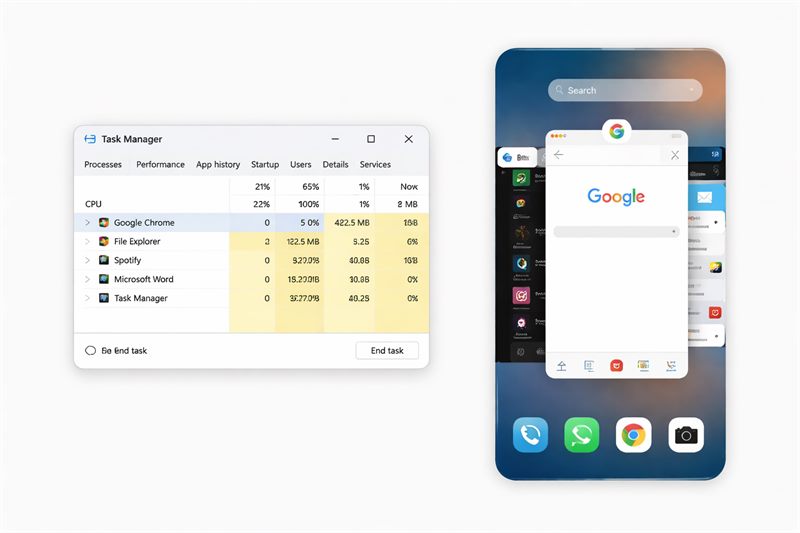
Platform-Specific Steps:
Windows
- Press Ctrl + Shift + Esc to open Task Manager
- Find the unresponsive app in the list
- Select it and click End Task
Android
- Go to Settings → Apps
- Select the problematic app
- Tap Force Stop
iPhone
- Swipe up from the bottom (or double-press home button)
- Find the frozen app in the app switcher
- Swipe the app upward to close it
When to use this method:
- When an app becomes completely unresponsive
- As the first step before trying other solutions
- When the app interface is frozen but the device works
- For quick resolution of temporary glitches
2. Restart Your Device
Restarting clears memory, resets background processes, and resolves temporary glitches. This simple solution often fixes multiple app issues simultaneously and should be attempted if force closing doesn't work.
Steps:
- Save any important work you have open
- Hold down the power button on your device
- Select "Restart" or "Reboot" from the options
- Wait for your device to fully restart
- Open the problematic app again
When to use this method:
- When multiple apps are freezing at the same time
- After force closing doesn't solve the problem
- When your device is running slowly overall
- After installing or updating system software
3. Clear App Cache and Data
Applications may freeze due to corrupted temporary files. Clearing cache often resolves the issue without losing personal data. If clearing cache doesn't work, clearing data will reset the app to its default state.
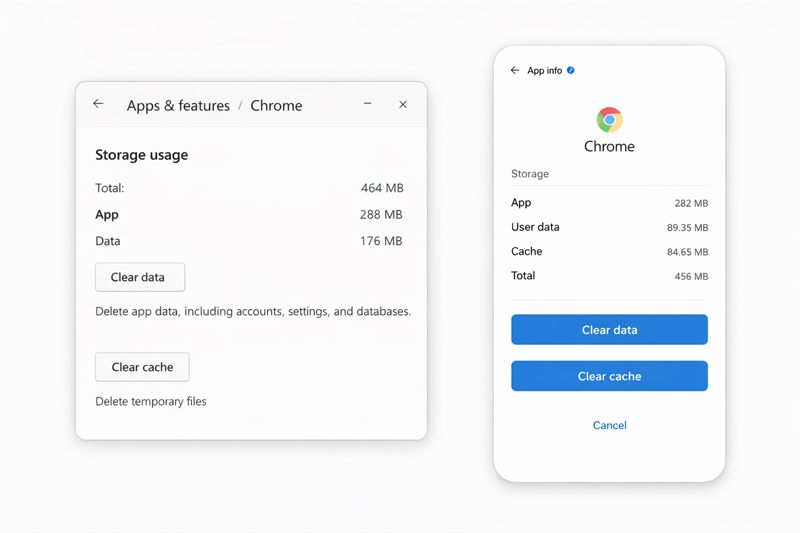
Platform-Specific Steps:
Android
- Go to Settings → Apps
- Select the problematic app
- Tap Storage → Clear Cache
- If the app still freezes, tap Clear Data (this will reset app settings)
Windows
- Some apps store cache in C:\Users\YourName\AppData\Local\
- Delete temporary folders, but avoid deleting important files
- Use Disk Cleanup utility to clear system temporary files
iPhone
- iOS manages cache automatically
- Reinstall the app or offload it in Settings (keeps data while clearing files)
- Offload apps in Settings → General → iPhone Storage
When to use this method:
- When an app is running slowly or freezing frequently
- After force closing and restarting don't work
- When an app is using excessive storage space
- When an app displays corrupted or outdated information
4. Update the App
Outdated applications often crash or freeze due to known bugs. Developers release updates to fix these issues and improve performance. Keeping your apps updated is one of the best preventive measures.
Steps:
- Open your device's app store (Play Store, App Store, or Microsoft Store)
- Search for the app that's not responding
- If an update is available, tap Update
- Wait for the update to complete
- Open the app again to see if the issue is resolved
- Enable automatic updates to prevent future issues
When to use this method:
- When an app starts freezing after a system update
- When you haven't updated the app in a long time
- When other users report similar issues with the app
- When the app crashes when performing specific actions
5. Check Storage Space
Full storage can cause apps to freeze as they need space to create temporary files and function properly. Devices need adequate free space to operate efficiently.
Steps:
- Go to your device's storage settings
- Check how much storage is available
- Delete unused apps and remove large files
- Clear downloads or temporary files
- Move photos and videos to cloud storage
- Keep at least 20% of storage free for smooth performance
When to use this method:
- When your device shows "storage almost full" warnings
- When multiple apps are crashing or freezing
- When your device is running slowly overall
- When you can't install new apps or updates
6. Check Internet Connection
Online apps like WhatsApp, TikTok, or Gmail may freeze with slow or unstable internet connections. A poor connection can cause apps to hang while trying to fetch data.
Steps:
- Check if other apps or websites have connectivity issues
- Reset your WiFi router by unplugging it for 30 seconds
- Switch to mobile data to test if the issue is with WiFi
- Move closer to your router for a stronger signal
- Turn Airplane Mode ON and then OFF to reset network connections
- Check your internet speed using an online speed test tool
When to use this method:
- When only online apps are freezing or not responding
- When apps show "no internet connection" errors
- When apps are slow to load or time out
- When the issue occurs on specific networks but not others
7. Reinstall the App
Corrupted app files can cause freezing. Reinstalling replaces damaged files with fresh ones from the official source. This is a more thorough solution than just clearing cache.
Steps:
- Uninstall the app from your device
- Restart your device to clear any remaining processes
- Install the app again from the official app store
- Sign in to your account if required
- Check if the app is working properly now
- Restore any in-app purchases or settings if needed
When to use this method:
- When clearing cache and data doesn't solve the problem
- When the app crashes immediately upon opening
- When the app shows error messages about corrupted files
- After updating the app doesn't fix the issue
8. Disable Battery Optimization (Android)
Some Android devices automatically kill background apps to save battery, which can cause apps to freeze unexpectedly. Disabling battery optimization for specific apps can prevent this.
Steps:
- Go to Settings → Battery → Battery Optimization
- Find the problematic app in the list
- Tap on it and select "Don't optimize" or "Don't restrict background activity"
- Save the changes and restart the app
- Note: This may increase battery consumption for that app
When to use this method:
- When an app works fine when actively used but freezes in background
- When apps stop receiving notifications or updates
- On devices with aggressive battery saving features
- For apps that need to run continuously in the background
9. Check for System Updates
System bugs can make apps incompatible. Updating your device OS can resolve these compatibility issues and improve overall system stability.
Platform-Specific Steps:
Android
- Go to Settings → Software Update
- Tap Download and install
- Restart your device after installation
iPhone
- Go to Settings → General → Software Update
- Tap Download and Install
- Enter your passcode if prompted
Windows
- Go to Settings → Update & Security → Windows Update
- Click Check for updates
- Install any available updates and restart
When to use this method:
- When multiple apps start freezing after a system change
- When your device hasn't been updated in a long time
- When apps crash with system-related error messages
- When new features are not working as expected
10. Close Background Apps
Running too many apps overloads RAM, causing freezes. Closing unnecessary apps frees up memory and system resources for the app you're actively using.
Platform-Specific Steps:
Android
- Tap the recent apps button (square or three lines)
- Swipe away apps you're not using
- Tap "Clear All" if available
iPhone
- Swipe up from the bottom and pause in the middle
- Swipe right or left to find apps to close
- Swipe up on app previews to close them
Windows
- Press Ctrl + Shift + Esc to open Task Manager
- Select apps using high memory
- Click End Task to close them
When to use this method:
- When your device feels slow or laggy
- When apps are freezing on a device with limited RAM
- When you have many apps open at the same time
- When an app works fine when no other apps are running
11. Reset App Preferences (Android)
Damaged app permissions or settings can make apps unresponsive. Resetting preferences restores default behavior without deleting app data, which can resolve various app-related issues.
Steps:
- Go to Settings → Apps
- Tap the menu button (three dots) in the top-right corner
- Select Reset App Preferences
- Confirm the reset when prompted
- This restores default app behavior without deleting app data
- You may need to reconfigure some app permissions after this
When to use this method:
- When apps are crashing due to permission issues
- When default apps are not working correctly
- After changing many app settings and encountering issues
- When apps behave differently than expected
12. Free Up RAM (Windows)
High memory usage can make apps unresponsive on Windows devices. Freeing up RAM can improve performance and resolve freezing issues.
Steps:
- Press Ctrl + Shift + Esc to open Task Manager
- Go to the Processes tab and sort by Memory usage
- Identify apps using high memory that you don't need
- Select them and click End Task
- Also check the Startup tab and disable apps that are not required to start with Windows
- Consider upgrading your RAM if you frequently run out of memory
When to use this method:
- When Windows is running slowly overall
- When multiple apps are freezing or crashing
- When your system shows high memory usage warnings
- When apps take a long time to respond to actions
Advanced Fixes
1. Safe Mode / Troubleshooting Mode
Booting in safe mode disables third-party apps and helps identify if another app is causing the issue. This is particularly useful when you suspect a recently installed app might be causing conflicts.
- Android: Press and hold power → Power Off → Hold Power again → Reboot into Safe Mode
- iPhone: Turn off, then restart while holding volume down (varies by model)
- Windows: Press F8 or Shift + Restart → Troubleshoot → Advanced Options → Safe Mode
2. Check Crash Logs
Some apps generate error codes that can help identify the problem. These logs provide technical details about what went wrong and can be invaluable for diagnosing persistent issues.
- Windows: Event Viewer (search in Start menu)
- Android: Logcat (requires Android SDK or developer options)
- iOS: Crash Reports in Settings → Privacy → Analytics & Improvements
3. Corrupted User Profile / Account
Sometimes the issue is with your user account rather than the app itself, especially for cloud-based apps. Creating a new profile can help isolate the problem.
- Log out and log back in to your account
- For cloud apps, try creating a new account to test if the issue persists
- On Windows, try creating a new user profile
- For iOS, sign out of iCloud and sign back in
4. Antivirus / Firewall Conflicts
Security software can sometimes interfere with app processes, causing them to freeze or crash. Temporarily disabling security software can help identify if this is the cause.
- Temporarily disable antivirus or firewall to test if the app works
- Add the app to the exception list in your security software
- Check security software logs for blocked processes
- Consider switching to a different security solution if conflicts persist
5. Third-Party App Conflicts
Other apps on your device might be causing conflicts, especially system utilities or accessibility apps. These can interfere with normal app operation in subtle ways.
- Memory booster apps, task killers, or accessibility apps can interfere
- Try disabling or uninstalling suspicious apps one by one
- Boot in safe mode to test if the issue persists without third-party apps
- Check for recently installed apps that might be causing conflicts
6. iOS Advanced Fixes
For iPhone users experiencing persistent issues that basic fixes don't resolve, these more advanced solutions can help restore normal operation.
- Reset Network Settings: Settings → General → Reset → Reset Network Settings
- Reset All Settings: Settings → General → Reset → Reset All Settings (keeps data)
- Reset Location & Privacy: Settings → General → Reset → Reset Location & Privacy
- As a last resort, perform a factory reset after backing up your data
7. Windows Advanced Fixes
For Windows users with persistent app freezing issues that require system-level solutions, these advanced techniques can resolve deep-rooted problems.
- Reinstall Visual C++ Redistributables from Microsoft's website
- Run System File Checker: Open Command Prompt as admin and run sfc /scannow
- Run DISM tool: DISM /Online /Cleanup-Image /RestoreHealth
- Check for driver updates, especially graphics drivers
- Perform a clean boot to identify startup program conflicts
Prevention Tips
Expert Tips
Real-World Example
Problem:
WhatsApp keeps freezing on Android, especially when trying to send images or during video calls. The app becomes unresponsive and sometimes crashes completely.
Cause:
Corrupted cache and low RAM due to too many background apps running simultaneously. The app is trying to process large files but doesn't have enough resources available.
Solution:
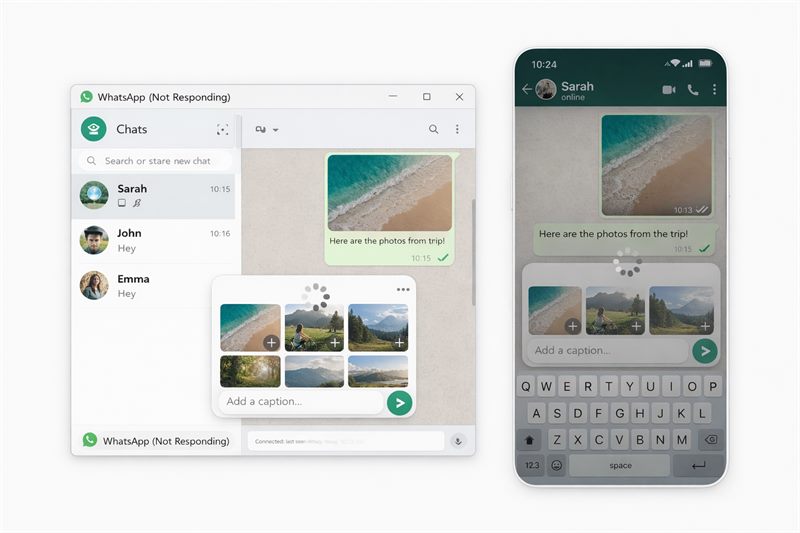
- Force stop the WhatsApp app
- Clear WhatsApp cache (Settings → Apps → WhatsApp → Storage → Clear Cache)
- Restart the phone to clear memory
- Close all unnecessary background apps
- Free up storage space by deleting unused files
- Update WhatsApp to the latest version
- If the problem persists, clear WhatsApp data (note: this will reset chat settings)
This step-by-step approach usually resolves the freezing issue in most cases by addressing both the immediate problem and underlying causes. The user reported that after following these steps, WhatsApp worked smoothly even during video calls.