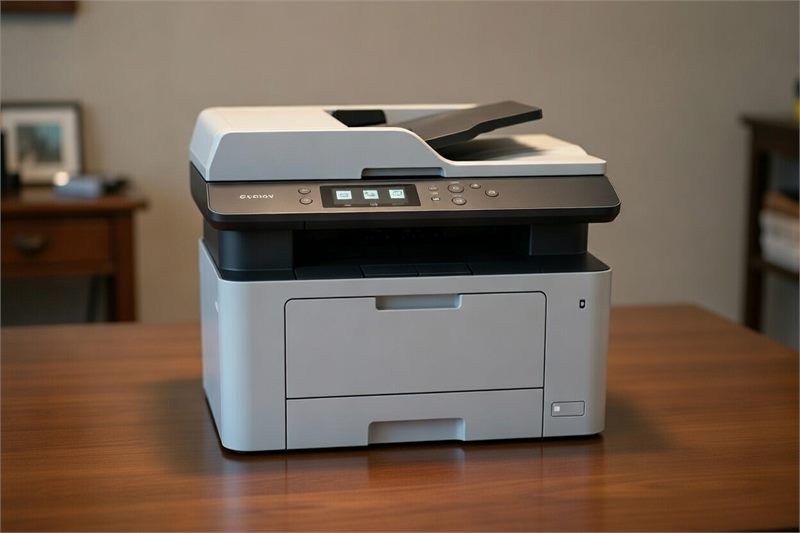
When a printer refuses to connect, the problem is rarely serious—but it can be confusing. The issue usually comes from a small communication break between the printer and the device, not from the printer being "dead." This comprehensive guide will walk you through all possible connection issues and their solutions.
Printers connect in three main ways, and each has its own potential issues. This guide will help you identify and fix the connection problem regardless of how your printer connects. We'll cover USB connections, Wi-Fi networks, and Bluetooth options, with step-by-step troubleshooting for each scenario.
Understanding the root cause of your printer connection issue is key to resolving it quickly. Often, what appears to be a complex problem is actually a simple misconfiguration or temporary glitch that can be fixed in minutes with the right approach.
Understanding Printer Connection Issues
Before diving into solutions, it's important to understand the different types of printer connections and common issues associated with each:
Direct Cable Connection
Physical USB connection between printer and computer
Local Network
Wi-Fi or Ethernet connection through your router
Short-range Wireless
Bluetooth connection for close-range printing
Quick Fixes That Solve Most Problems
Try these solutions first—they resolve over 80% of printer connection issues:
Full Restart Sequence
The most effective fix for most connection issues.
- Turn off the printer
- Shut down your computer
- Unplug your router (if wireless)
- Wait 60 seconds
- Power on: Router → Printer → Computer
Check Printer Status
Look directly at the printer—not the computer.
- Check for blinking warning lights
- Look for "offline", "paused", or "error" messages
- Ensure paper is loaded correctly
- Verify ink/toner cartridges are seated properly
Reset Printing System
Clears communication issues between devices.
- Clear all pending print jobs
- Restart the printing service
- Re-add the printer fresh
- Try printing a test page
Complete Step-by-Step Troubleshooting
Eliminate Temporary Glitches
Before touching settings, perform a proper restart sequence to clear cached network paths that often trap printers in a "connected but unavailable" state.
- Turn off the printer
- Shut down your computer or phone
- If the printer is wireless, unplug your router
- Wait 60 seconds
- Power everything back on in this order: Router → Printer → Computer / phone
Many printers reconnect at this stage alone. This is the most important step to try first.
Check the Printer's Own Status
Look directly at the printer—not the computer. Printers will silently refuse connections if they detect a physical problem.
What to check:
- Is there a blinking warning light?
- Is the screen showing "offline", "paused", or "error"?
- Is paper loaded correctly?
- Are ink or toner cartridges seated properly?
Fix any visible issue before continuing with software troubleshooting.
Verify Connection Type
Different connection types have unique troubleshooting steps. Identify how your printer connects and follow the appropriate steps.
For Cable Connections:
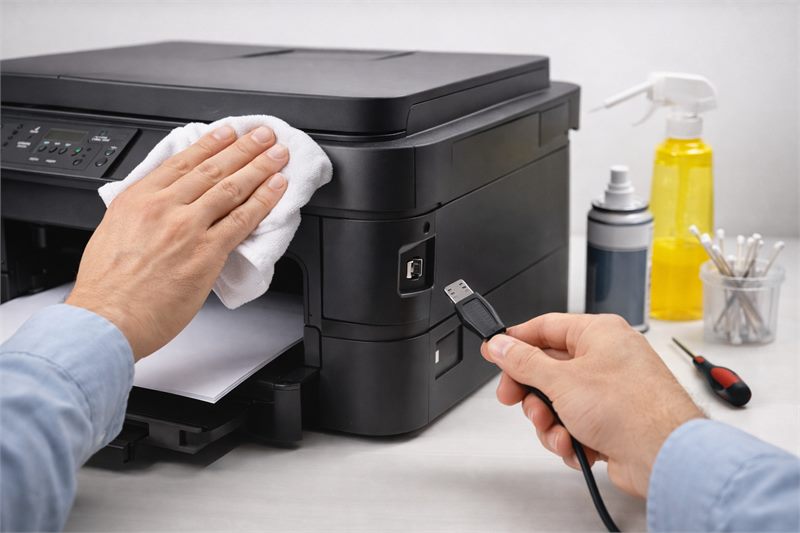
- Remove the cable from both ends and reconnect firmly
- Use a different USB port
- Avoid extension cables or hubs
- Replace the cable if it feels loose or old
For Wi-Fi/Network Connections:
- Check if printer is connected to the right Wi-Fi network
- Verify router password hasn't changed
- Check if router switched bands (2.4GHz vs 5GHz)
- Ensure VPN is disabled on your computer
Make Sure Computer Is Using Correct Printer
Many users have multiple printer profiles without realizing it. Computers often send jobs to printers that no longer exist.
- Open printer settings on your computer
- Remove old or duplicate printers
- Set the correct one as default
- Try printing a test page
Reset the Printing System
Printing relies on background services. When they freeze, nothing connects. This resets broken communication channels that don't fix themselves.
- Clear all pending print jobs
- Restart the printing service
- Re-add the printer fresh
This step alone solves many "printer detected but won't print" cases.
Reinstall Printer Software Properly
Bad drivers cause silent connection failures. Using the correct drivers is essential for reliable printer operation.
- Remove the printer from system settings
- Uninstall related printer software
- Restart the device
- Install fresh software for your exact printer model
- Connect the printer only when asked
Avoid generic or automatic drivers unless no official option exists.
Check Security and Network Restrictions
Printers need permission to communicate. Security software can block printer connections without obvious warnings.
Things that block printers:
- Firewalls
- Antivirus network protection
- VPNs
- Office network restrictions
How to test:
- Temporarily disable security software
- Try printing
- If it works, allow the printer in the security settings
Do not leave protection disabled—adjust permissions instead.
Update Printer Firmware
Printers run their own software (firmware). Outdated firmware can cause connection problems.
Issues caused by outdated firmware:
- Break Wi-Fi connections
- Fail to recognize new devices
- Drop off the network randomly
Updating firmware often restores stable connections.
Factory Reset (Last Resort)
If the printer has been moved, reused, or reconfigured many times, internal settings can conflict.
A factory reset:
- Clears saved networks
- Removes corrupted profiles
- Restores default communication settings
After resetting, set up the printer as if it were brand new.
Rule Out Hardware Failure
If software solutions don't work, test the printer on different devices to determine if it's a hardware issue.
Test the printer on:
- Another computer
- Another phone
- Another network
If it fails everywhere, the issue may be:
- Damaged USB port
- Faulty Wi-Fi module
- Internal board needing repair
Connection Type Specific Solutions
USB/Cable Printers
- Remove and reconnect the cable firmly at both ends
- Try a different USB port on your computer
- Avoid using USB hubs or extension cables
- Replace the cable if it's old or damaged
- Test the printer on another computer
- Check if the computer recognizes the device when plugged in
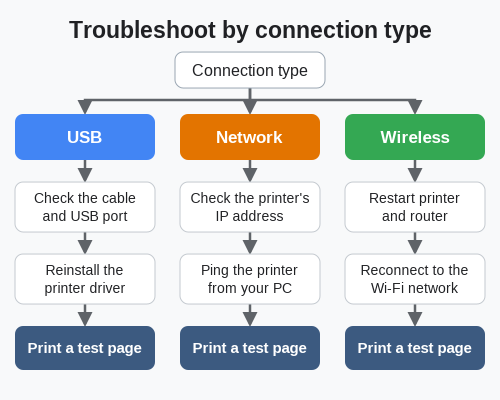
Wi-Fi Printers
- Ensure printer and device are on the same Wi-Fi network
- Remove saved Wi-Fi settings from the printer
- Reconnect the printer to the network from scratch
- Check if router switched bands (2.4GHz vs 5GHz)
- Restart the router and printer
- Avoid guest networks during setup
- Verify printer is getting adequate signal strength
- Check for MAC address filtering on your router
Network/Ethernet Printers
- Check if Ethernet cable is securely connected
- Verify the printer has a valid IP address
- Ping the printer's IP address from your computer
- Check if router is blocking printer traffic
- Restart both printer and router
- Try a different Ethernet cable or port
Bluetooth Printers
- Ensure Bluetooth is enabled on both devices
- Remove previous pairings and pair again
- Check if printer is in pairing mode
- Keep devices within range (typically 30 feet)
- Remove other Bluetooth devices that might interfere
- Update Bluetooth drivers on your computer
Essential Software & Settings to Check
These are the key software components and settings that often cause printer connection problems. Ensuring these are configured correctly can resolve most issues.
Key Features:
- Enables all printer functions
- Provides access to advanced settings
- Ensures compatibility with your OS
- Includes necessary firmware updates
Key Features:
- Network protection
- Application filtering
- Customizable rules for devices
- Can be configured to allow printer traffic
Key Features:
- Manages network traffic
- Controls device connections
- Updates fix security and compatibility issues
- Can improve printer connection stability
Key Features:
- Network protection features
- Firewall functionality
- Can block unknown device connections
- Requires configuration to allow printers
Key Features:
- Creates secure network tunnel
- Blocks local network access by default
- Must be disabled for local printer use
- Some offer split-tunneling options
Key Features:
- Automated problem detection
- Fixes common connectivity issues
- Resets printer spooler service
- Available in Windows Settings/Mac System Preferences
Common Mistakes to Avoid
- Skip the full restart sequence: Not properly restarting all devices (router, printer, computer) in the correct order is the most common mistake.
- Ignoring the printer's display: Many users focus only on their computer and ignore error messages directly on the printer.
- Using old or damaged cables: Continuing to use a faulty USB cable instead of replacing it when it's clearly worn out.
- Forgetting about network changes: Not updating printer settings after changing Wi-Fi password or getting a new router.
- Leaving security software disabled: Temporarily disabling antivirus or firewall to fix printing, then forgetting to re-enable it.
Useful Tips
- Restart in the correct order: Always power on devices in this sequence: router first, then printer, then computer.
- Check the printer first: Before troubleshooting software, always check the printer's display for error messages.
- Remove old printer profiles: Delete old or duplicate printer entries from your computer's settings to prevent confusion.
- Reset the printing system: Use the built-in printing system reset option before reinstalling drivers for a clean slate.
- Use official drivers: Always download printer drivers directly from the manufacturer's website rather than using generic ones.
Most Reliable Fixes (From Real Experience)
Restart everything properly (router, printer, computer)
Remove duplicate printer entries from computer settings
Reset the printing service on your computer
Reinstall correct drivers from manufacturer website
Reconnect Wi-Fi from scratch on the printer
Factory reset if settings are corrupted
Final Advice
Printer connection issues are frustrating because they look complex—but they're usually simple miscommunications between devices. Fix the connection methodically, not randomly, and the printer almost always comes back online.
Remember to follow the steps in order, as each step builds on the previous one. Start with the simplest solutions first before moving to more complex ones. In most cases, a proper restart sequence will resolve the issue.