Software Security
Software security is essential in today's digital world

Installing software safely protects your device from malware, unwanted programs, data theft, and performance issues. This comprehensive guide explains safe installation methods for every major device, plus common mistakes to avoid, trusted sources, and troubleshooting steps.

With over 560,000 new pieces of malware detected every day and software supply chain attacks on the rise, understanding how to install software safely has never been more critical. This guide will equip you with the knowledge and tools to protect your devices and data from potential threats.

The Growing Threat of Malware

560,000+
New malware detected daily
68%
Of breaches involve malware
42%
Of users download from untrusted sources
$4.35M
Average cost of a data breach

What Safe Installation Means

Verified Sources
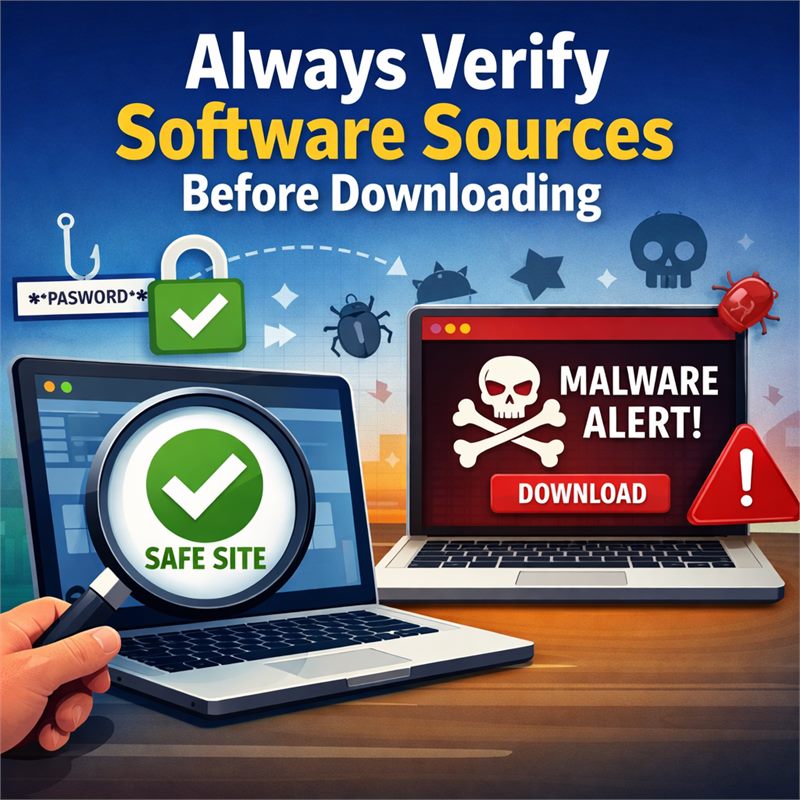
Always verify software sources before downloading

Safe installation is the process of:

  • Getting apps only from verified sources
  • Checking file type, publisher, permissions
  • Avoiding bundled junk, fake buttons, and cracked files
  • Ensuring the software is compatible and trustworthy
  • Keeping your system secure while installing

Safe installation goes beyond simply avoiding viruses. It involves understanding the entire software supply chain, verifying the authenticity of the software, and ensuring that the installation process doesn't compromise your system's security or privacy.

Safe Websites & Stores to Download Legit Software

This section helps users know exactly where safe software can be found. Using these trusted sources significantly reduces your risk of downloading malware or unwanted software.

Official App Stores

Microsoft Store
Windows' official app marketplace with verified apps
Mac App Store
Apple's curated marketplace for macOS applications
Google Play Store
Android's official app store with security scanning
Apple App Store
iOS/iPadOS exclusive app marketplace

Trusted PC Software Sites

TechSpot
Clean and highly reputable with direct downloads
MajorGeeks
Manually tested files with no bundled software
Ninite
Safest bulk installer with no bundled junk
LO4D
Multi-antivirus scanned downloads

Platform-Specific Installation Guides

Windows Safe Installation Guide

Downloading Safely

Always prefer official sites or Microsoft Store. Avoid cracked copies, torrents, and random download pages. Look out for fake "Download" ads that often appear on software download sites. These ads are designed to look like legitimate download buttons but lead to potentially harmful software.

Before Opening Installer

Check file type: .exe, .msi, .zip are standard. Be suspicious of other file extensions like .scr, .bat, or .com which can execute malicious code. Always scan with Windows Defender or your antivirus software before opening. Check digital signature by right-clicking the file, selecting Properties, then Digital Signatures.

macOS Safe Installation Guide

Best Sources

The Mac App Store is the safest source for macOS applications as all apps are reviewed by Apple. For software not available in the App Store, download only from official websites or verified GitHub projects. Be wary of third-party download sites that offer Mac software - they often bundle unwanted applications or malware.

Safe File Types

Standard macOS application files include .dmg (disk images), .pkg (installer packages), and .app (applications). Avoid unknown scripts or files from random sites, especially .exe files which are Windows executables and won't run natively on macOS. Be cautious with .zip and .rar archives.

Android Safe Installation Guide

Best Practices

Install apps primarily from Google Play Store, which scans apps for malware and security issues. Avoid modded APKs, cracked APKs, or random APK websites, as these are common sources of malware. Before installing any app, check the developer name, app ratings, and recent reviews.

If APK Is Necessary

If you must install an APK outside the Play Store, use only trusted sources like APKMirror (which verifies signatures) or APKPure (as a secondary option). Before enabling "Install from unknown sources" in your settings, ensure you understand the risks. After installation, consider disabling this option again.

Tools for Verifying Software Safety

These tools can help you verify the safety and authenticity of software before installation:

VirusTotal
Free online service that scans files and URLs with over 70 antivirus engines. Upload any installer file to check for known malware before running it.
Sigcheck
Windows command-line utility that checks file signatures and verifies file version information. Helps confirm if a file is digitally signed by a trusted publisher.
Sandboxie
Sandbox-based isolation program for Windows that lets you run applications in an isolated environment. Test unknown software without risking your system's security.
HashMyFiles
Small utility that calculates the MD5, SHA1, SHA256, SHA384, and SHA512 hashes of files. Compare these hashes with those provided by the software publisher to verify file integrity.

Common Mistakes to Avoid

This section prevents 90% of problems. Avoiding these common mistakes will significantly improve your software installation safety:

Installing cracked software - often contains malware, keyloggers, or backdoors
Clicking fake download buttons - many sites use deceptive ads that look like download buttons
Using Quick Install instead of Custom - this allows installers to add unwanted software
Ignoring antivirus warnings - if your security software flags a file, there's usually a good reason
Allowing unnecessary permissions - apps that request excessive access may be collecting more data
Trusting unknown developers - new or anonymous developers haven't established a reputation for trustworthiness

What to Do After Installing

Safe installation doesn't end when the progress bar finishes. A few quick habits keep your computer secure:

  • Turn on automatic updates for the program and your operating system, as updates fix security holes.
  • Review permissions: check what the app can access, such as your camera, microphone, location, and files, and turn off anything it doesn't need.
  • Check start-up apps: stop unnecessary programs from launching when your computer starts.
  • Uninstall what you don't use: old, unused software is a common security risk.
  • Run a security scan if anything behaves strangely after installation, such as new toolbars, pop-ups, or a changed browser homepage.

Safety Checklist Before Installing Anything

Download from trusted sites only
Scan the file with antivirus software
Check digital signature and publisher
Use Custom installation instead of Quick
Reject bundled apps and toolbars
Review requested permissions carefully
Avoid cracked or pirated software
Keep your operating system updated
Create backups before important installs
Read reviews and check developer reputation
Verify file hashes when available
Use a standard user account for daily tasks