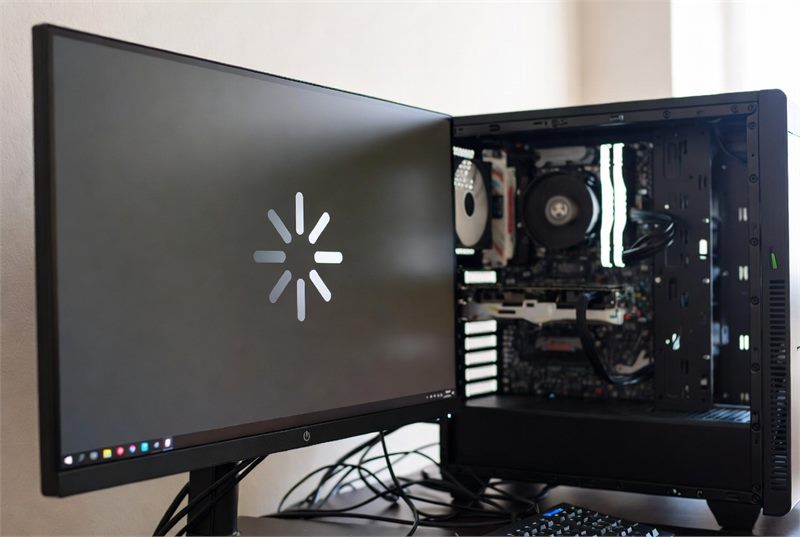
A slow computer can quickly turn simple tasks into frustrating experiences. Programs take longer to open, the system freezes unexpectedly, and even browsing the internet feels painful. The good news is that in most cases, a slow computer does not mean you need to buy a new one.
With proper maintenance, smart settings, and a few upgrades (if needed), you can significantly improve your computer's speed and responsiveness. This guide explains clear, proven, and beginner-friendly steps to help your computer run faster and smoother again.
Basic Cleanup
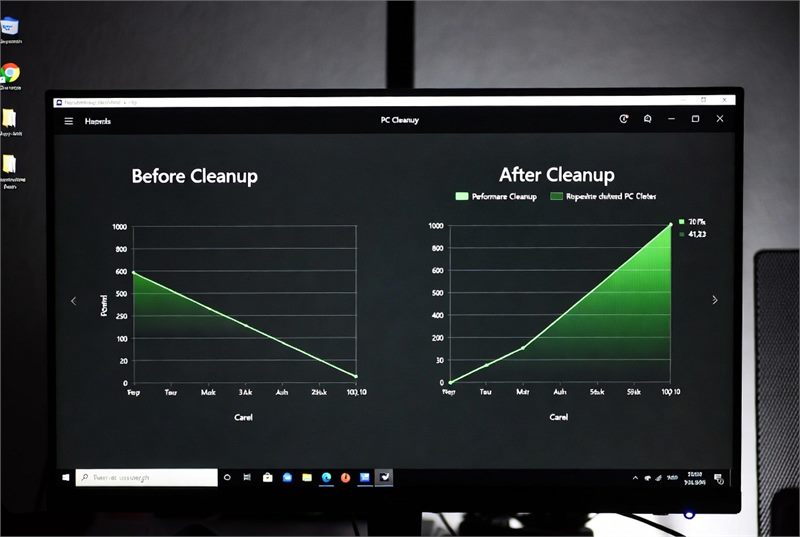
Over time, computers collect unnecessary files such as temporary system files, old downloads, cached data, and deleted items sitting in the recycle bin. When storage becomes crowded, performance drops.
- Delete temporary files
- Empty the recycle bin
- Remove old downloads you no longer need
- Clear system cache files
Many computers are filled with applications that were installed once and never used again. These programs take up storage and may run background services that slow your system.
- Uninstall software you haven't used in months
- Remove trial software and unnecessary pre-installed apps
- Restart after uninstalling to apply changes
Some apps automatically start when your computer turns on. Too many startup programs can drastically increase boot time and slow performance.
- Disable non-essential startup apps
- Keep only security software and critical system tools enabled
System Settings

If your computer struggles with multitasking or becomes slow when multiple apps are open, low RAM may be the issue.
- Browser tabs slow everything down
- System freezes during multitasking
- Memory usage frequently hits 90–100%
Malware often runs silently in the background, consuming system resources and causing unexplained slowdowns.
- Run a full system scan using trusted antivirus software
- Remove any detected threats
- Enable real-time protection
System updates fix bugs, improve performance, and patch security holes. Outdated systems often run slower and less efficiently.
- Operating system
- Device drivers
- Installed applications
Hardware Checks
Web browsers are one of the biggest performance killers if not managed properly.
- Close unused tabs
- Remove unnecessary extensions
- Clear cache and browsing data
- Keep the browser updated
On older computers with hard disk drives (not SSDs), files become scattered over time, slowing file access.
- Use the built-in disk optimization tool
- Defragment the drive periodically
Replacing an old hard drive with an SSD is one of the biggest speed upgrades possible.
- Faster boot times
- Programs open instantly
- Better overall responsiveness
Advanced Options

Animations and visual effects look nice but consume system resources.
- Switch to performance-focused visual settings
- Disable unnecessary animations
Some apps use excessive CPU, memory, or disk resources without you realizing it.
- Open Task Manager
- Look for programs using high CPU or memory
- Close or uninstall problematic apps
If your computer became slow after installing new software or updates, restoring it to an earlier point may help.
- Performance dropped suddenly
- Other fixes didn't work
Maintenance
Simple habits keep your computer running efficiently.
- Keep desktop uncluttered
- Update apps regularly
- Remove unused files monthly
- Restart occasionally
Leaving your computer running for days or weeks causes memory buildup and background processes to pile up.
- Restart at least once a week
- Restart immediately if performance drops suddenly
If your main drive is almost full, performance will suffer.
- Use cloud storage
- Store large files on an external drive
- Move old videos, backups, and archives
File system errors can slow down your computer over time.
- Run disk error checking tools
- Repair corrupted system files
When to Get Professional Help
If your system remains slow despite trying everything above, a technician can:
- Diagnose hardware problems that may not be obvious
- Recommend targeted upgrades based on your specific needs
- Clean internal components safely, removing dust that can cause overheating
Sometimes expert intervention saves time and money by addressing the root cause of performance issues.
Final Thoughts
A slow computer doesn't mean it's useless. In most cases, proper cleanup, smart settings, and occasional upgrades can restore speed and reliability. Start with free solutions first, then consider hardware improvements only if needed.
Consistent care keeps your computer fast, secure, and enjoyable to use for years to come.