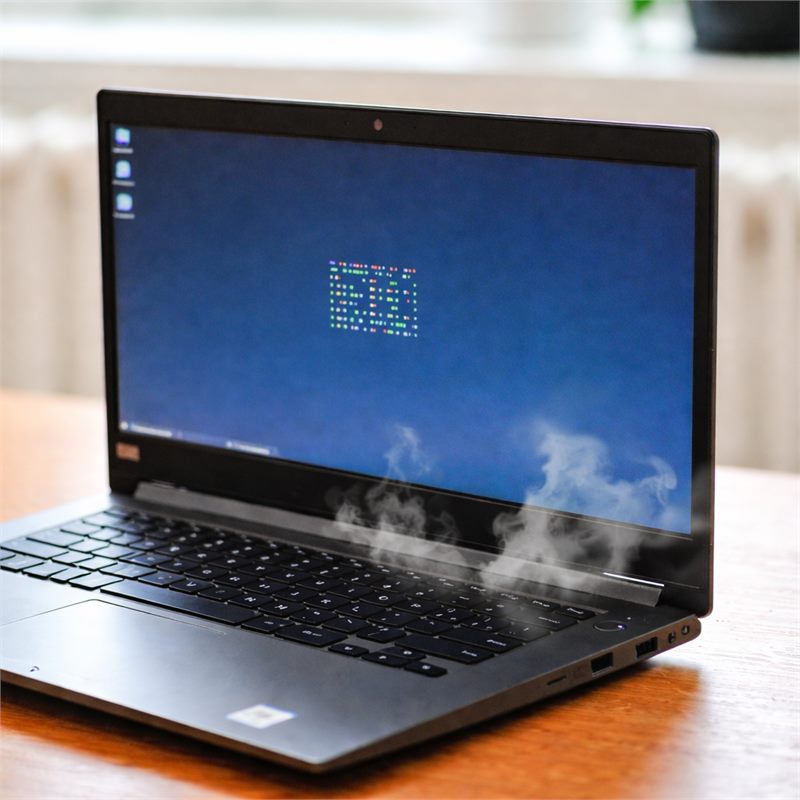
Laptop overheating is one of the most common performance problems users face today. Whether you work, study, game, or stream content, your laptop constantly manages heat produced by the CPU, GPU, and internal components. When this heat cannot escape properly, the temperature rises, and the laptop begins to slow down, freeze, shut down, or suffer long-term damage.
This complete guide explains everything: why laptops overheat, early warning signs, step-by-step solutions, advanced fixes, and long-term prevention methods. It is written in a clear, human-readable format, ensuring every user can identify the cause and fix the problem confidently.
Signs & Symptoms of Laptop Overheating
Recognizing overheating early prevents permanent damage. Look for these common signs that your laptop is running too hot:
Loud Fan Noise
Fan becomes very loud even during simple tasks
Hot to Touch
Laptop becomes hot on the keyboard or bottom area
Performance Issues
Performance slows or freezes during use
Unexpected Shutdowns
Sudden shutdowns during gaming or heavy apps
Fast Battery Drain
Battery drains faster than usual
Screen Issues
Screen stutters or lags during use
Hot When Idle
Laptop feels hot even when not in use
Error Messages
System displays temperature warning messages
Common Causes of Laptop Overheating
Understanding what causes your laptop to overheat is the first step toward fixing it. Here's a breakdown of the most common causes and their effects:
| Cause | Effect |
|---|---|
| Dust Accumulation | Blocks airflow, reduces cooling efficiency |
| Heavy Applications | Increases CPU/GPU load and heat generation |
| Old Thermal Paste | Poor heat transfer from processor to heatsink |
| Malware | Unnecessary CPU usage in background |
| Blocked Vents | Prevents hot air from escaping |
| Failing Cooling Fan | Inadequate cooling of internal components |
| High Ambient Temperature | Reduces cooling system efficiency |
| Outdated Drivers/BIOS | Poor power management and fan control |
Detailed Explanation of Overheating Causes
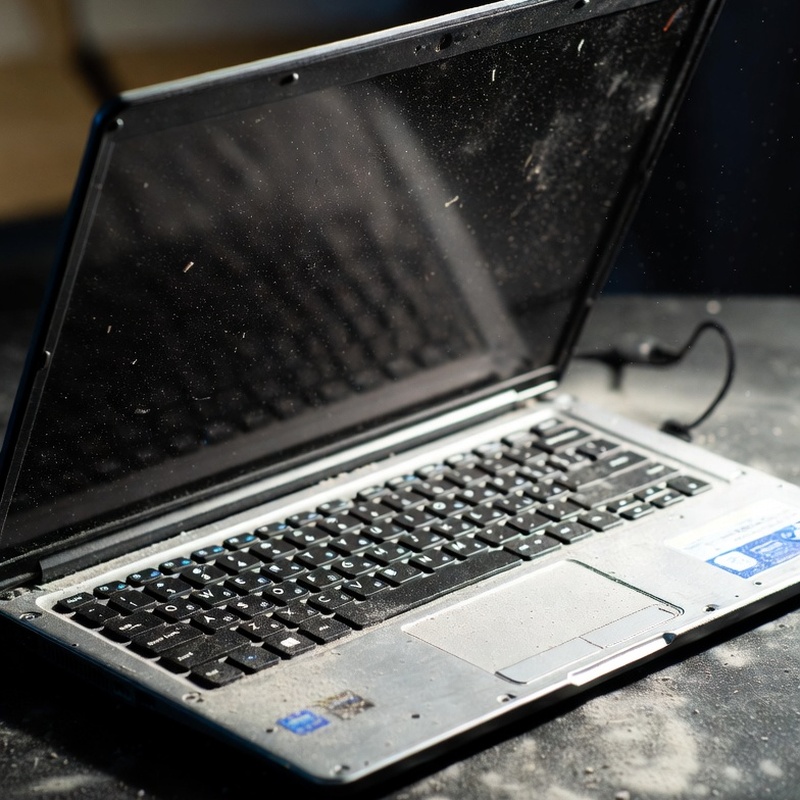
Laptops generate heat during normal operation, but they cool themselves using fans, vents, and internal heat pipes. When any part of this cooling system fails, heat builds up faster than it can escape. Let's explore these causes in more detail:
Blocked Air Vents
Using the laptop on soft surfaces like a bed, pillow, couch, or even your lap blocks the airflow. When vents are covered, the fan cannot expel hot air, leading to rapid heat buildup.
Dust and Dirt Inside the Laptop
Over time, dust collects inside the cooling fan and vents. This restricts airflow, slows the fan, and traps heat. Even a thin layer of dust can increase temperature significantly.
Failing or Weak Cooling Fan
If the fan becomes clogged, damaged, slow, or stops spinning, the laptop cannot cool itself effectively. Fan issues are a common reason for sudden overheating and shutdowns.
Heavy Background Processes and High CPU/GPU Usage
Multitasking with too many apps, browser tabs, or software that uses high processing power (games, editing tools, virtualization software) generates intense heat.
Old or Dry Thermal Paste
Thermal paste transfers heat from the CPU/GPU to the heat sink. When it dries after years of use, heat cannot move efficiently, causing temperature spikes.
Battery Problems
Older or failing batteries can leak heat into the laptop body. Charging while using intensive applications can worsen the temperature.
Outdated BIOS or Driver Issues
Sometimes overheating results from system mismanagement. A faulty BIOS update or outdated drivers may cause the CPU to run at higher power than necessary.
Malware or System Corruption
Malware may silently use CPU power, causing the system to heat up even when you are not doing heavy tasks.
Hot Environment
Using the laptop in high room temperatures or direct sunlight reduces the cooling system's efficiency.
Laptop Temperature Guide
Monitoring your laptop's temperature helps you identify when it's running too hot. Here's a general temperature guide for laptops:
How to Check Laptop Temperature
To confirm overheating, you can monitor the actual temperature using free tools:
If temperatures exceed 85–90°C during normal use, the system is overheating. If the laptop hits 95–100°C, it may shut down automatically to prevent damage.
How to Fix Laptop Overheating: Step-by-Step Solutions
Below are the most effective solutions categorized by complexity and duration. Start with immediate fixes and progress to more advanced solutions if needed.
Immediate Fixes
These quick solutions can provide immediate relief from overheating issues:
Shut Down and Let the Laptop Cool
The first and most immediate step when you notice overheating is to shut down your laptop properly. This prevents potential damage to internal components and allows the system to cool down naturally.
Follow these steps:
Clean the Air Vents
Blocked vents are the most common cause of overheating. Dust, pet hair, and debris accumulate over time, restricting airflow. Regular cleaning of vents can significantly improve cooling efficiency.
Use the Laptop on a Hard, Flat Surface
Soft surfaces like beds, pillows, couches, or even your lap can block the air vents on the bottom of your laptop, preventing proper airflow and causing heat to build up quickly.
Advanced Fixes
These solutions require more technical knowledge but can provide significant improvements in cooling performance:
Limit Background Processes
High CPU usage increases heat generation significantly. Many applications run in the background without your knowledge, consuming processing power and generating heat.
Adjust Power Settings to Reduce CPU Heat
This is one of the most effective fixes, especially for Intel-based laptops. By limiting the maximum processor state, you can reduce heat generation without significantly impacting performance for everyday tasks.
Update BIOS and Drivers
Manufacturers regularly release updates to improve thermal management, fan control algorithms, and power efficiency. Outdated firmware or drivers can cause the cooling system to perform suboptimally.
Permanent Solutions
These solutions address the root causes of overheating and provide long-term relief:
Clean or Replace the Cooling Fan
If the fan is extremely noisy, spins slowly, or doesn't spin at all, it may need cleaning or replacement. This is a more advanced solution that may require opening your laptop.
Replace Old Thermal Paste
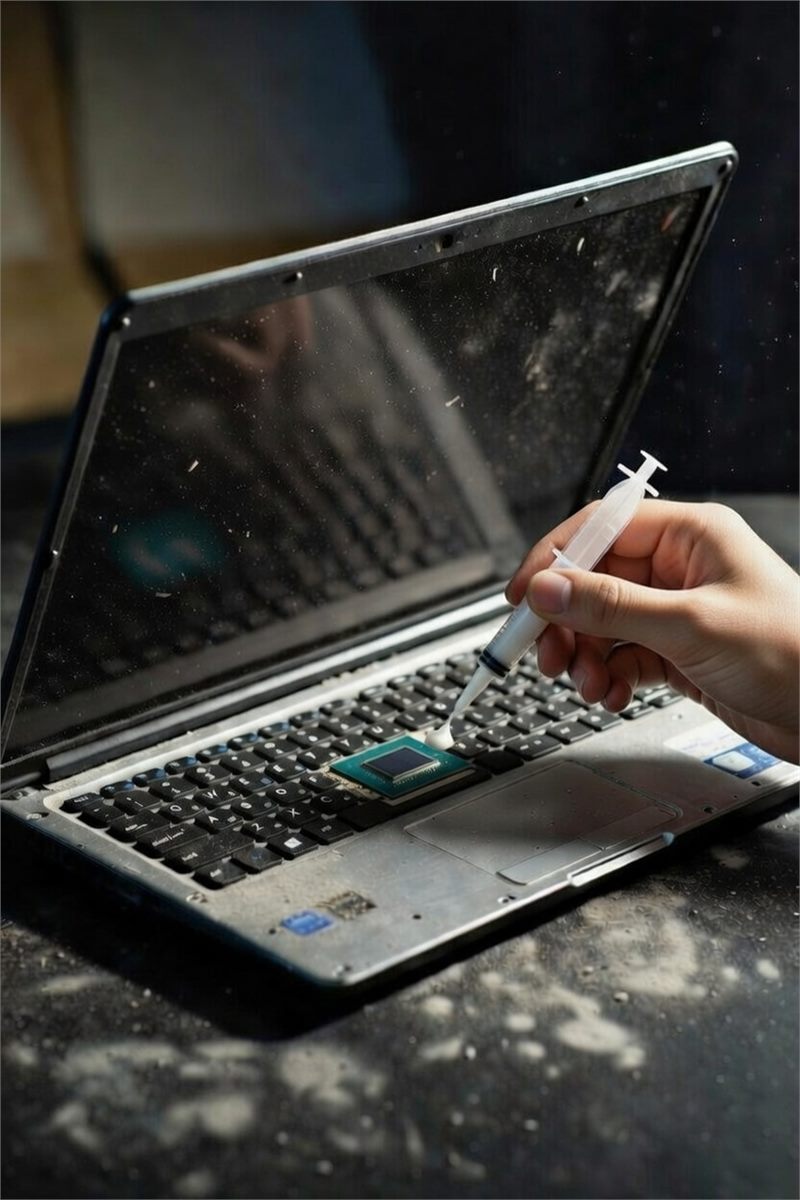
Thermal paste (or thermal compound) transfers heat from the CPU/GPU to the heat sink. Over time (typically 2-4 years), it dries out and loses effectiveness, causing temperature spikes.
Use a Laptop Cooling Pad
A cooling pad provides additional airflow to help dissipate heat more effectively. This is particularly useful for gaming laptops or those used for intensive tasks.
Additional Solutions for Persistent Overheating
If the above solutions don't resolve your overheating issues, consider these additional approaches:
Scan for Malware
Malware can force your CPU to run at maximum capacity in the background, generating significant heat even when you're not doing intensive tasks.
Avoid Direct Sunlight and Hot Environments
Environmental factors play a significant role in laptop temperature. Using your laptop in hot conditions makes it harder for the cooling system to maintain safe temperatures.
Remove Heavy Software Temporarily
If your laptop only overheats during specific tasks, the software you're using might be too demanding for your system's cooling capabilities.
Advanced Fixes for Persistent Overheating
If basic steps do not solve the issue, try the advanced methods below. These solutions require more technical knowledge but can provide significant improvements in cooling performance.
CPU Undervolting
This lowers voltage without reducing performance. It reduces temperature significantly on high-end Intel processors. Requires technical knowledge and tools like ThrottleStop or Intel XTU.
Steps: Download ThrottleStop or Intel XTU, create a voltage offset profile, test stability with stress tests, and apply gradually. Typical undervolting ranges from -50mV to -150mV.
GPU Throttle Adjustments
For gaming laptops, adjusting GPU performance levels can control excessive heat during gaming. Use tools like MSI Afterburner to fine-tune GPU settings.
Lower the power limit, reduce core clock speeds, and adjust fan curves. This can lower temperatures by 10-15°C with minimal impact on gaming performance.
Airflow Modification
Some users slightly lift the back of the laptop using a stand to improve heat dissipation. This simple trick can significantly improve cooling efficiency.
For more advanced users, consider drilling additional ventilation holes (only if you're experienced and confident). This should be done with extreme caution to avoid damaging components.
Replacing the Battery
A swollen or overheating battery must be replaced immediately. It can damage internal components if ignored and poses a safety risk.
Signs of a bad battery include rapid discharge, physical swelling, and excessive heat. Purchase only manufacturer-approved replacements and follow proper disposal procedures for the old battery.
How to Prevent Laptop Overheating in the Future
Prevention helps extend laptop life and avoids repeated overheating issues. Incorporate these habits into your regular laptop maintenance routine.
Consistent maintenance helps keep performance stable and increases device lifespan. Set calendar reminders every 3-6 months to perform basic cleaning and maintenance tasks.
When to Seek Professional Repair
While many overheating issues can be resolved with the steps above, some situations require professional expertise. You should contact a technician if:
These indicate internal hardware problems that require expert handling. Professional repair services have specialized tools and expertise to diagnose and fix complex cooling system issues safely.