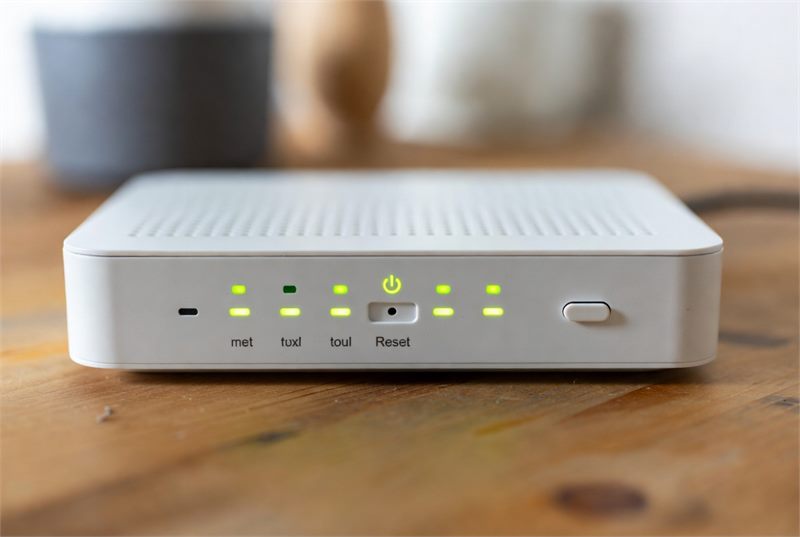
If you've ever unplugged your modem-router, waited a few minutes, plugged it back in, and hoped for the best — you're not alone. That's what most people do. The confusion starts when devices also have a reset button, and suddenly you're left wondering whether unplugging is "wrong" or if pressing reset is somehow better.
The truth is simple: both actions exist for different problems, and mixing them up causes more internet issues than it solves. Understanding when to restart versus when to reset can save you hours of frustration and prevent unnecessary data loss. This guide will help you make the right decision every time.
First, Understand What You're Actually Using
A two-in-one modem-router does two jobs at the same time, acting as both the gateway to your internet service provider and the local network hub for all your devices. Understanding this dual functionality is key to troubleshooting effectively.
Talks to your ISP
Shares connection
When internet problems appear, they don't always come from the same side. The modem portion handles communication with your ISP, while the router portion manages local network traffic. Issues with either function can cause different symptoms, which is why a systematic approach to troubleshooting is essential.
Unplugging vs Pressing Reset: What's the Real Difference?
This is a temporary refresh, not a reset. It's like restarting your computer - it clears temporary issues but preserves all your settings.
- Clears short-term memory
- Forces the device to reconnect to your ISP
- Fixes small software hiccups
- Keeps all your Wi-Fi names, passwords, and settings
This is safe, reversible, and should always be your first move.
If unplugging fixes your issue, nothing else was broken.
This is not maintenance — it's erasing. Think of it as formatting a computer before selling it.
- Deletes Wi-Fi name and password
- Removes custom network rules
- Clears saved ISP connection data
- Restores the device to out-of-box condition
This is used when:
- Settings are corrupted
- You can't access the router panel
- Someone misconfigured the device
- You're starting fresh (new ISP, new owner)
Resetting is powerful — and permanent until reconfigured. Always try restarting first.
So… Is There a "Best" Way to Restart a Modem-Router?
Yes. And it's not pressing reset. The best restart method is simple, safe, and effective for most common internet issues.
The Best Restart Method (Safe & Correct)
That's it. No reset button. No settings lost. No extra problems created.
If this fixes your connection, you did it the right way.
When Restarting Is NOT Enough
A restart won't help if the problem is more serious than a temporary glitch. Recognize these signs that indicate a reset might be necessary:
That's when a reset becomes logical — not emotional.
How to Reset a Modem-Router (Only When Necessary)
Physical Reset Button Method
Most modem-routers have a small reset button, usually recessed to prevent accidental presses.
- Keep the device plugged in and powered on
- Find the tiny reset hole (back or bottom)
- Use a pin or paperclip
- Hold for 15-30 seconds
- Release and wait for full reboot
Do not unplug during this process, as it can corrupt the firmware.
Reset Through Settings (Preferred if Accessible)
If you can still log into the router's admin panel, this is the safer method.
- Connect to the device via Wi-Fi or Ethernet
- Open its control panel in your browser
- Look for System / Maintenance / Restore
- Choose factory reset
- Confirm and wait
This method reduces the risk of software damage and gives you more control.
What People Forget After Reset (And Panic About)
After a reset, don't be surprised by these normal behaviors:
This is normal behavior, not failure. The device is essentially brand new again.
You'll need to:
- Log in again (using default credentials)
- Rename your Wi-Fi to something recognizable
- Set a new strong password
- Re-enable any custom features you had before
- Reconnect all your devices
Reset doesn't fix internet by magic — it clears obstacles and corrupted settings.
How to Tell If It's the Modem or Router Side Failing
Here's a simple test most guides skip that can help you identify the source of the problem:
This tells you where not to waste time troubleshooting.
Restart Order Matters (This Is Critical)
If your setup has separate modem and router units, the restart order is crucial for proper reconnection.
Wrong order can cause IP assignment failures and connection issues.
How Often Should You Restart or Reset?
Restart
Only when problems appear, or monthly as preventive maintenance
Reset
Only when settings are broken or you're starting fresh
If you're resetting often, the real issue is:
- Old hardware (over 3-5 years)
- Overheating or poor ventilation
- Firmware bugs or outdated software
- Too many connected devices
- ISP instability or service issues
Resetting repeatedly is a warning sign — not a solution. Address the root cause.
Final Thought (This Is the Part Most Sites Miss)
Restarting clears confusion. Resetting erases memory.
If you treat reset like a normal fix, you'll create problems you didn't have.
If you restart calmly and only reset with purpose, your internet stays stable.
That's the difference between guessing and understanding.