Understanding Internet Slowness
Slow internet is frustrating, especially when everything looks connected but nothing loads properly. Videos buffer, pages hang, and important work feels impossible. The worst part? Most people try the same basic fixes again and again — restarting the router, checking cables — and still see no real improvement.
The truth is, slow internet usually isn't caused by one big problem. It's often a combination of small, hidden issues that quietly steal your speed.
This guide focuses on simple but powerful fixes, explained in plain language, so anyone can follow them — no technical knowledge needed.
First: Understand Where the Slowness Is Coming From
Before changing anything, it helps to know what kind of slow internet you're dealing with.
Ask yourself:
- Is everything slow, or just one device?
- Is it slow all day, or mostly in the evening?
- Does it improve when fewer people are online?
If the internet feels fine late at night or early morning but slows down in the evening, the issue is usually network congestion, not broken equipment.
If only one device is slow, the problem is likely that device, not your internet line.
This small observation alone can save you from wasting time and money.
Effective Solutions for Faster Internet
Most people turn their router off for 10-20 seconds and expect miracles. That rarely works.
A better method:
- Turn off the router and modem
- Leave them off for 10-15 minutes
- Turn them back on and wait until everything fully reconnects
Why this helps:
- Your internet provider may assign a cleaner or less crowded route
- Temporary network errors get fully cleared
- Overheating issues get a real cooldown
It sounds simple, but this longer shutdown works far better than quick restarts.
One of the biggest reasons internet feels slow is background usage.
Even when you're not downloading anything, apps may be:
- Uploading files
- Syncing backups
- Updating silently
Common culprits include cloud storage apps, system updates, and streaming apps left open.
What helps:
- Pause cloud syncing temporarily
- Close apps you're not actively using
- Delay system updates until later
Many users notice an immediate improvement after doing just this.
Quick Tips That Make a Big Difference
Router Placement Matters More Than Speed Plans
A fast internet plan won't help if Wi-Fi can't travel properly. Poor placement causes weak signals, frequent data retries, and slower real-world speed.
Better placement tips: Place the router in an open area, keep it away from metal objects and thick walls, avoid cupboards and corners, and position it at chest or shelf height. You don't need new equipment — just better placement.
Use the Right Wi-Fi Band (This Makes a Big Difference)
Most modern routers broadcast two Wi-Fi options: one for longer range and one for higher speed. If you're close to the router, connect to the faster band. If you're far away, use the longer-range option.
Many people stay on the slower band without realizing it, even while sitting next to the router. Switching bands alone can make the internet feel instantly faster.
A Simple Trick: Let Your Phone Help Your Laptop
Laptop Wi-Fi receivers are often weaker than phone antennas. An easy workaround: connect your phone to your laptop using a USB cable, turn on USB tethering, and keep mobile data turned off.
Your phone acts as a stronger wireless receiver, improving stability and speed — especially on older laptops.
Test Speed the Right Way
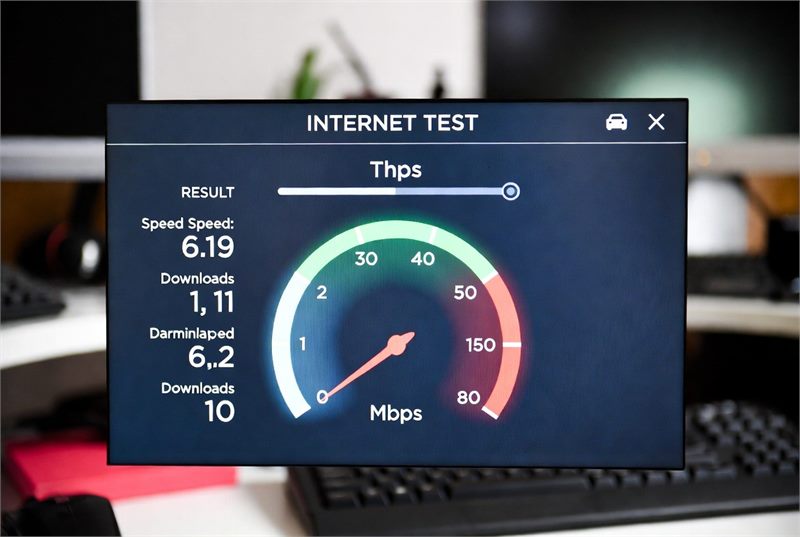
Speed tests are often misunderstood. For accurate results:
- Close all apps
- Test more than once
- Try different testing sites
- Don't panic over one bad result
Speed naturally changes throughout the day.
Advanced Solutions for Persistent Issues
If the internet slows down mostly during:
- Evenings
- Weekends
- School or work-from-home hours
That's usually peak usage, not a fault.
What you can do:
- Schedule large downloads for late night or early morning
- Avoid heavy tasks during peak hours when possible
- Reduce how many devices are active at the same time
You may not control the network outside your home, but you can reduce competition inside it.
Check Who Else Is Using Your Wi-Fi
Extra devices silently connected to your network can slow things down. Good habits: change your Wi-Fi password occasionally, disconnect devices you no longer use, and restart the router after changing the password.
This ensures your bandwidth is being used only by people and devices you trust.
Try a VPN — But Only When Needed
Sometimes internet providers slow down certain types of traffic or websites. Using a trusted free VPN occasionally can improve stability, reduce throttling, and help during busy evening hours.
This isn't for constant use, but it can help when browsing feels unusually slow.
When to Contact Your Internet Provider
If you've tried the fixes above and your connection is still slow, the problem may be outside your home. Contact your provider when:
- Speed tests on a cable-connected computer are far below the speed you pay for, at several times of day
- The connection drops repeatedly, or the router's internet light keeps flashing or turning red
- Neighbours on the same provider report similar problems
- Your router is several years old or was supplied by the provider and may need replacing
Before calling, write down your speed test results with dates and times, and the steps you've already tried. This helps support staff skip basic checks and move faster to a line test or engineer visit. If problems continue, ask whether a different plan, a newer router, or a fibre upgrade is available in your area, and check your contract for any minimum speed guarantee.
Final Honest Advice
There is no secret button that instantly doubles internet speed. But combining a few of these steps — reducing background usage, placing the router properly, using the correct Wi-Fi band, and limiting connected devices — can make your internet feel dramatically faster without spending money. That's what most people really want: not perfect numbers, but smooth browsing, stable video, and no constant buffering.