Close-up of hands on keyboard during a multiplayer gaming session in dimly lit room
The safest approach is simple: get games from official sources. This guide explains where to download games safely, what to check before you install, how to find free and cheaper games legally, and how to keep your account and PC protected.
Step 1: Use Official Stores and Launchers
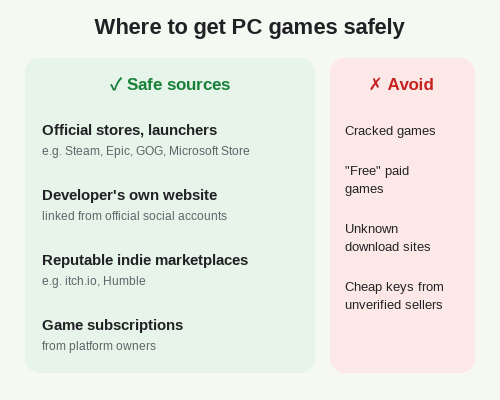
Where you download matters as much as what
Digital game stores check the games they sell, handle updates automatically, and keep your purchases tied to your account. Well-known options include:
- Large PC stores: such as Steam, the Epic Games Store, GOG (which sells games without copy protection), and the Microsoft Store or Xbox app.
- Publisher launchers: some publishers, such as EA, Ubisoft, and Battle.net, sell and run their own games through their own apps.
- Indie marketplaces: such as itch.io and Humble, which feature many independent developers.
- The developer's own website: for some games, especially indie titles, linked from their official social media.
Download launchers only from the company's official website. Search adverts sometimes lead to fake download pages that look almost identical.
Step 2: Check Before You Buy or Download
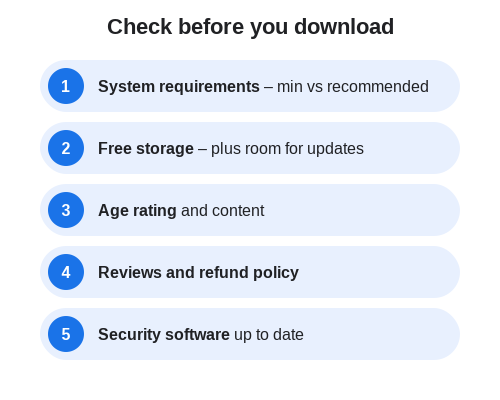
Five quick checks save money and frustration
- System requirements: compare the minimum and recommended specifications with your PC's processor, graphics card, memory (RAM), and operating system.
- Storage space: modern games can need 50 to 150 GB or more, plus space for updates. An SSD makes loading faster.
- Age rating and content: check ratings from systems like PEGI or ESRB, especially for children.
- Reviews: recent user reviews reveal performance problems, bugs, or changes after launch.
- Refund policy: many stores offer refunds within a short period if you haven't played long; read the conditions before buying.
Step 3: Find Free and Cheaper Games Legally
- Free-to-play games: many popular games are free to download, funded by optional in-game purchases.
- Weekly free games: some stores give away games to keep for free for a limited time.
- Seasonal sales: major stores run large sales several times a year with big discounts.
- Game subscriptions: services like PC Game Pass give access to a library of games for a monthly fee.
- Bundles: charity and indie bundles offer many games for a low price.
- Demos and free weekends: try before you buy.
Be careful with cheap key sites
Some third-party "key reseller" sites sell game codes much cheaper than official stores. Codes can sometimes be obtained fraudulently and later revoked. Authorised retailers listed by the publisher are a safer choice.
Step 4: Avoid Cracked Games and Fake Downloads
Pirated or "cracked" games are illegal in most countries and are among the most common sources of malware. Criminals know players will disable antivirus software to run them, which makes them an ideal way to spread password stealers and other malicious software.
- Avoid sites offering paid games for free, "repacks", or "full version" downloads.
- Don't run game "mods", "cheats", or "trainers" from unknown sources; they're a frequent malware trap and can get your account banned.
- Be wary of messages from strangers on Discord or social media asking you to "test my game" with a download link.
- Never disable your antivirus to install a game; legitimate games don't require this.
If you've installed something suspicious
Disconnect from the internet, run a full scan with up-to-date security software, and uninstall the program. Then, from a different, clean device, change passwords for your email, game accounts, and banking, and turn on two-step verification.
Step 5: Protect Your Game Accounts
- Use a strong, unique password for each game store and turn on two-step verification.
- Never share your login or verification codes, even with "friends" or people claiming to be support staff.
- Be wary of phishing sites offering free skins, items, or gift cards in exchange for logging in.
- Use parental controls and spending limits for children's accounts.
- Keep Windows, your graphics drivers, and your security software up to date.
Once your games are installed, our guide on fixing game lag can help you get the smoothest performance.
Manage Your Game Library
Games take a lot of storage, so manage your library over time. Uninstall games you're not playing; you can redownload them from your store library at any time. Use cloud saves where available so progress isn't lost when you uninstall or move to a new PC. If you use several launchers, check their settings to stop them all from starting automatically with Windows, which slows startup.
Downloading Games for Children
If children use the PC, set up a separate Windows account for them and use family safety features from Microsoft and the game stores. These let you require approval for purchases and downloads, set age limits, and limit screen time. Teach children never to download games or mods from links shared in chats or videos, and to ask before installing anything new. Checking age ratings and reviews together is a good way to agree on suitable games.
It also helps to agree on household rules together, such as how much time can be spent gaming on school days, which online features children can use, and how much can be spent on in-game purchases each month. Writing these down and reviewing them as children get older keeps expectations clear. Many platforms send weekly activity reports to parents, which make it easier to have friendly conversations about gaming habits rather than arguments.
Above all, keep the conversation open, so children feel comfortable telling you about a suspicious download, message, or purchase rather than hiding it.
Final Thoughts
Downloading PC games safely is straightforward: use official stores, launchers, and developer sites, check requirements and reviews before buying, take advantage of legal free games and sales, and avoid cracked games and suspicious downloads entirely. Protect your accounts with strong passwords and two-step verification, and you can enjoy a huge library of games without putting your PC at risk.