
Two women relaxing and playing video games on a comfortable sofa together
This guide explains what you need, how to join friends on PC, consoles, and phones, how to fix common connection problems, and how to keep online gaming safe and enjoyable, especially for younger players.
Step 1: Get What You Need
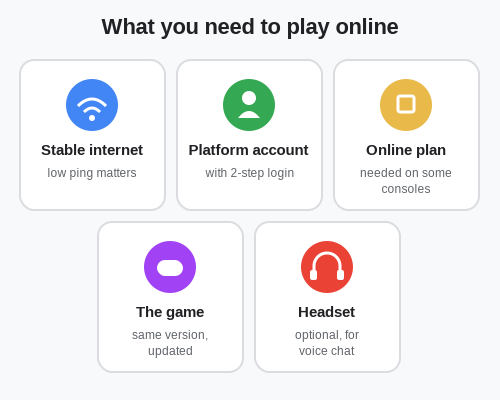
Five things to have ready before you play
- A stable internet connection: speed matters less than stability and low ping. A wired connection is best for fast-paced games.
- A platform account: for example, an Xbox, PlayStation, Nintendo, Steam, or game publisher account. Turn on two-step verification.
- An online subscription on some consoles: many console platforms require a paid subscription for online play in most paid games, while free-to-play games are often exempt. On PC, online play usually doesn't need a subscription.
- The game, fully updated, with the same version as your friends.
- A headset (optional): for voice chat with your team.
Step 2: Play With Friends
- Add friends using their username or friend code on your platform or in the game.
- Create a party or lobby and send invites, or join a friend's game from your friends list.
- Check cross-play: many popular games let players on different platforms play together. Make sure cross-play is turned on in the game settings, and you may need to link accounts.
- Check regions: friends in different countries may need to choose the same server region.
- Use the game's matchmaking for playing with strangers; it tries to match players of similar skill and location.
Local vs online multiplayer
"Local multiplayer" or "couch co-op" means playing together on the same device. "Online multiplayer" means playing over the internet. Check a game's store page to see which it supports before buying.
Step 3: Fix Connection and NAT Problems
If you can't join friends, hear voice chat, or connect to games, the problem is often your NAT type, a setting that controls how your router handles connections. Consoles and some games show it as Open, Moderate, or Strict (or Type 1, 2, 3).
- Run the network test in your console or game settings to see your NAT type.
- Restart your router and console or PC.
- Make sure UPnP (Universal Plug and Play) is enabled in your router settings, which lets games open the connections they need automatically.
- If needed, follow your platform's official support guide for port forwarding.
- Use a wired connection and close other heavy internet use for smoother play.
For lag and stutter, see our guide on fixing game lag.
Step 4: Stay Safe Online
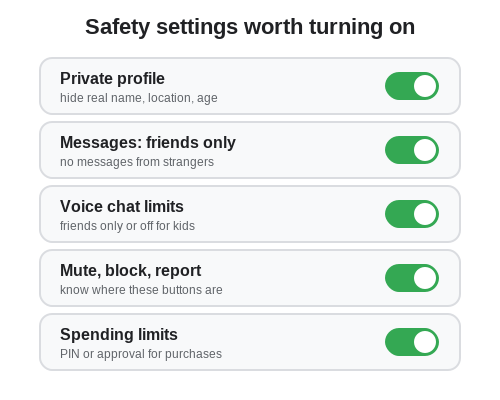
Privacy and safety settings are on every platform
- Use a username that doesn't reveal your real name, age, school, or location.
- Set your profile and friends list to private or friends-only.
- Limit messages and voice chat to friends, especially for children.
- Never share passwords, verification codes, personal details, or photos with people you meet in games.
- Learn how to mute, block, and report players; every major platform has these tools.
- Be cautious of anyone offering free items, currency, or "account upgrades"; these are common scams.
For parents
Use the family or parental control settings on consoles, PCs, and phones to manage who children can talk to, set spending limits, and control playtime. Check age ratings, play together sometimes, and encourage children to tell you if anything online makes them uncomfortable. Report serious concerns to the platform and, if necessary, the police.
Step 5: Be a Good Teammate
- Communicate clearly and positively; useful call-outs help more than criticism.
- Don't leave matches early in team games unless necessary.
- Respect players of every skill level; everyone was new once.
- Avoid cheating tools; they ruin games for others and can lead to permanent bans.
- Take breaks, keep an eye on your screen time, and step away if you feel frustrated.
Manage In-Game Spending
Many online games are free to start but sell cosmetics, battle passes, loot boxes, or in-game currency. Set a budget, use gift cards or spending limits if you find it easy to overspend, and turn on purchase approval for children's accounts. Buy items only through the official in-game store; third-party sellers and "cheap currency" sites often break the rules and can lead to stolen accounts or bans. If you download games on PC, see our guide on downloading PC games safely.
Make Your First Online Session Smooth
Before your first session with friends, agree on a time, check that everyone has updated the game, and confirm which platform and region you will use. Start the game a few minutes early in case updates or patches need to download. Test your headset and voice chat in the game's settings so you are not adjusting it mid-match.
If you are new to a game, try training modes, tutorials, or casual playlists before ranked or competitive matches. You will learn the controls and maps without pressure, and you will be a better teammate when you join friends. Many games also have beginner-friendly modes or matchmaking for newer players, which makes the first few hours far more enjoyable.
Finally, remember that online games change over time. Developers add new modes, balance changes, and seasonal events, so check patch notes occasionally. Joining the game's official community pages or forums is a good way to learn tips, find teammates, and stay up to date with server maintenance and known issues.
Most importantly, have fun and play at your own pace.
Final Thoughts
Playing online multiplayer is easy once you're set up: a stable connection, a secure platform account, any required subscription, and an updated game. Add friends, check cross-play, fix NAT issues if you have them, and use privacy and safety settings to keep the experience positive. Then the fun part is simple: jump in and play.