Watching videos on a phone during a train journey
This guide explains how to watch YouTube on phones, computers, and televisions, how to stop buffering, how to manage video quality and data, and how to make YouTube a safer place for children.
Step 1: Watch on Your Phone or Computer
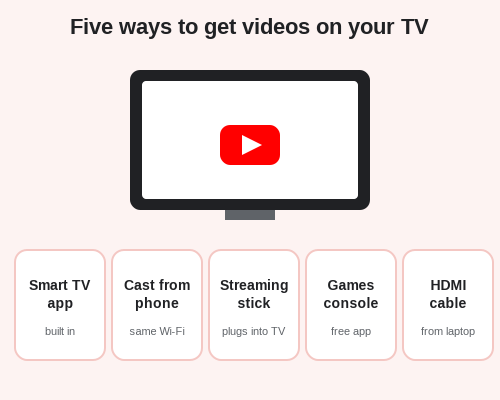
Most TVs can play YouTube one way or another
- On phones and tablets, use the official YouTube app from your device's app store. It offers the best performance, downloads on YouTube Premium, and easy casting to TVs.
- On computers, use an up-to-date web browser. Keeping your browser updated improves performance and security.
- Sign in to save videos to playlists, subscribe to channels, and get recommendations based on what you enjoy.
- Use keyboard shortcuts on computers: space or K to pause, J and L to skip back or forward 10 seconds, F for full screen, and C for captions.
Step 2: Watch on a TV
There are several ways to get YouTube onto a bigger screen:
- Smart TV app: most modern smart TVs include YouTube. Sign in using the code shown on the TV and your phone or computer.
- Cast from your phone: if your TV or streaming device supports casting, tap the cast icon in the YouTube app while both devices are on the same Wi-Fi network. Your phone becomes the remote.
- Streaming sticks and boxes: plug-in devices add YouTube and other apps to older TVs.
- Games consoles: most have a free YouTube app.
- HDMI cable: connect a laptop directly to the TV and play YouTube in the browser.
Step 3: Stop Buffering
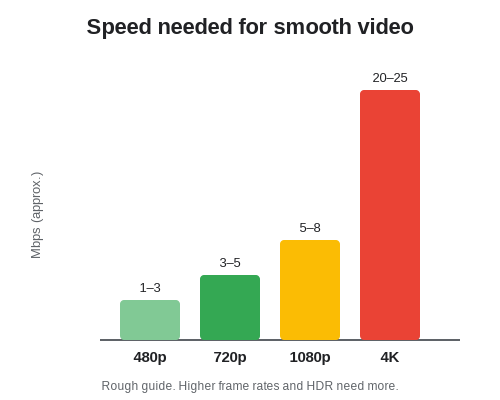
Higher resolutions need faster connections
- Lower the quality manually in the video settings (the gear icon), for example from 1080p to 720p.
- Move closer to your router, or use a wired connection for TVs and consoles.
- Pause downloads and other streaming in your home while watching.
- Restart the app or device, and restart your router if problems continue.
- Clear the app's cache on Android, or update the app and browser.
- Check for wider outages if videos won't load at all; the problem may be on YouTube's side.
Test your speed
Run an internet speed test on the device you're watching on. If your speed is much lower than your plan promises, especially over Wi-Fi, the problem is likely your home network rather than YouTube.
Step 4: Manage Quality and Mobile Data
- Set default quality: in the YouTube app settings, choose your preferred video quality on mobile networks and on Wi-Fi separately. "Data saver" reduces mobile data use.
- Watch HD on Wi-Fi: high-quality video can use a lot of data per hour, so save it for Wi-Fi if your mobile plan is limited.
- Turn off autoplay to stop videos playing one after another and using data.
- Download for offline viewing: YouTube Premium lets you download videos in the official app; downloading through third-party sites usually breaks YouTube's terms and can expose you to malware.
Step 5: Organise What You Watch
- Subscribe to channels you enjoy, and use the bell icon for notifications of new uploads.
- Save to Watch Later or create playlists for topics, recipes, workouts, or music.
- Improve recommendations by using "Not interested" or "Don't recommend channel" on videos you don't want.
- Manage your history: pause or delete watch history in your account settings if you prefer.
- Use captions and playback speed for accessibility, learning, or watching quietly.
Keep YouTube Safe for Children
YouTube's main app is designed for users aged 13 and over in most countries. For younger children, YouTube Kids offers a separate app with filtered content and parental controls, and supervised accounts let parents choose content settings for older children. Turn on Restricted Mode for an extra filter on shared devices, but remember that no filter is perfect. Watching together, setting time limits, and talking about what children see are the most effective protections.
Watch out for scams in videos and comments
Be cautious of videos and comments promising free money, cryptocurrency giveaways, or "hacked" apps, and of fake live streams using famous names. Never send money or personal details because of a YouTube video or comment, and report scams to YouTube.
Is YouTube Premium Worth It?
YouTube is free with adverts, but YouTube Premium removes ads, allows downloads in the official app, and lets videos play in the background on phones. It usually includes YouTube Music Premium as well. Whether it is worth paying depends on how much you watch and whether you would otherwise pay for a separate music service.
If you are on a tight budget, the free version works well, especially on Wi-Fi. Family and student plans, where available, can make Premium cheaper per person. Whichever you choose, avoid unofficial "ad-free" apps or modified versions, which break YouTube's terms and often carry security risks.
If you have a family, check whether a shared family plan suits you better than individual subscriptions, and remember that you can cancel Premium at any time from your account settings. Try the free trial, where offered, to see if the features matter to you before paying.
Whichever option you choose, keeping the official app updated, using sensible quality settings, and organising your subscriptions will make YouTube faster, cheaper on data, and far more enjoyable to use every day.
Final Thoughts
Streaming YouTube smoothly is mostly about the right device setup and a stable connection. Use the official apps, cast or install YouTube on your TV, lower the quality when buffering, manage mobile data, and organise your favourite channels and playlists. With sensible safety settings for children, YouTube becomes an easy, reliable source of entertainment and learning. For live gaming and creator streams, see our guide on using Twitch effectively.