Sleek gaming desk setup featuring RGB lighting, large monitor, and gaming PC with glowing
Network lag happens when data between your device and the game server is slow or unreliable. Performance lag happens when your computer or console can't render the game smoothly. This guide helps you identify which you're dealing with and walks through practical fixes for both, on PC and consoles.
Step 1: Work Out Which Kind of Lag You Have
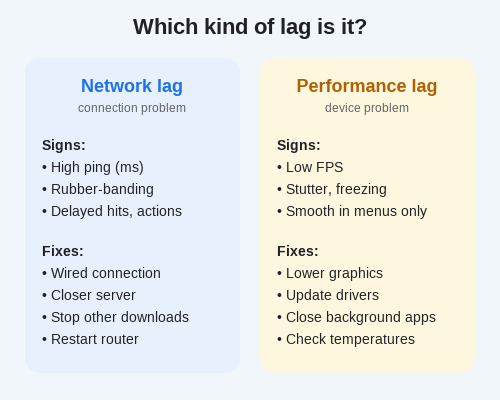
Identify the type of lag before fixing it
- Signs of network lag: high ping shown in the game, rubber-banding (you move, then snap back), delayed actions, other players jumping around, and problems only in online modes.
- Signs of performance lag: low or unstable frames per second (FPS), stuttering, choppy movement even in single-player, and the game running smoothly in menus but not in busy scenes.
Turn on the game's performance overlay or network statistics if it has them. On PC, many launchers and graphics drivers also include an FPS counter. Knowing your ping and FPS turns guesswork into a clear diagnosis.
Step 2: Fix Network Lag
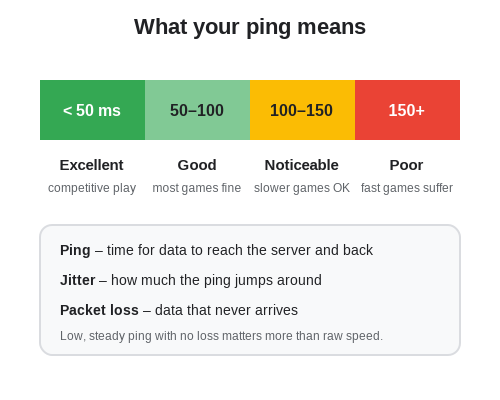
Stable, low ping beats raw download speed
- Use a wired Ethernet connection instead of Wi-Fi. It's the single most effective fix, reducing ping, jitter, and packet loss.
- If you must use Wi-Fi, move closer to the router, remove obstacles, and use the 5 GHz band if your devices support it. A mesh system or powerline adapter can help in larger homes.
- Stop other heavy internet use during play: large downloads, cloud backups, video streaming, and game updates on other devices.
- Choose the nearest game server or region in the game's settings.
- Restart your router and modem occasionally, and keep the router's firmware up to date.
- Turn on QoS (Quality of Service) or a gaming mode in your router, if available, to prioritise game traffic.
- Test your connection with a speed test that shows ping and jitter. If problems persist at all times, contact your internet provider.
What about "gaming VPNs"?
A VPN usually adds distance and increases ping. It can occasionally help if your provider routes traffic poorly, but it's not a general lag fix. Be cautious of services promising to "eliminate lag".
Step 3: Fix Performance Lag on PC
- Check the system requirements and compare them with your PC. If you're below the recommended specification, lower settings are necessary.
- Lower demanding graphics settings: resolution, shadows, anti-aliasing, volumetric effects, and ray tracing have the biggest impact. Texture quality depends mostly on your graphics card's memory.
- Use upscaling such as DLSS, FSR, or XeSS if your game and graphics card support it, for higher FPS with little visual loss.
- Update graphics drivers from your GPU maker's official website or app.
- Close background apps, especially browsers with many tabs, recording software, and overlays.
- Use the right power settings: on laptops, plug in and select a high-performance mode; make sure the game runs on the dedicated GPU rather than integrated graphics.
- Install games on an SSD to reduce loading stutter.
Step 4: Fix Lag on Consoles
- Install system and game updates, which often include performance fixes.
- Use a wired connection and test the network from the console's settings menu.
- Choose a "performance" mode over "quality" or "resolution" mode where games offer it, for higher frame rates.
- Make sure the console has space around it for airflow, and clean dust from vents.
- Fully restart the console occasionally rather than only using rest mode.
- Turn on your TV's "game mode", which reduces input lag.
Step 5: Check Heat and Hardware
Overheating is a common hidden cause of sudden slowdowns. When components get too hot, they reduce speed to protect themselves, which is known as thermal throttling. Keep vents clear, clean dust regularly, and use monitoring software to check temperatures on a PC. Laptops benefit from a hard, flat surface or a cooling stand rather than a bed or sofa.
If a game runs poorly even on low settings, your hardware may simply be below what it needs. Adding more RAM, upgrading to an SSD, or upgrading the graphics card are the most common improvements for gaming PCs. Check compatibility carefully before buying parts.
Avoid "FPS booster" downloads
Programs promising to "boost FPS" or "optimise your PC for gaming" are often useless and sometimes contain adware or malware. Stick to official driver tools from your GPU maker and the game's own settings. Never disable your antivirus to improve performance.
When the Problem Isn't on Your Side
Sometimes lag comes from the game's servers. If everyone in the match is lagging, if problems start at a specific time, or if many players report it on social media or the game's status page, the issue is likely with the servers or a wider outage. Waiting, switching regions, or playing another mode is usually the only solution. Our guide on playing online multiplayer covers more connection and setup tips.
A Quick Lag-Fixing Checklist
When lag strikes, work through this short routine before changing anything complicated. Restart the game, then your device, then your router. Switch to a wired connection if possible, and close anything else using the internet or heavy processing power. Check the game's server status and your region setting. On PC, update your graphics driver and lower the most demanding settings first, such as shadows and ray tracing. Finally, watch temperatures and clean dust from vents.
Most lag problems are solved by one of these steps. Write down what you changed and whether it helped, so you can quickly repeat the fix if the problem returns after an update.
Final Thoughts
Fixing game lag starts with knowing which kind you have. For network lag, use a wired connection, pick nearby servers, and stop other heavy internet use. For performance lag, lower demanding settings, update drivers, close background apps, and keep your device cool. Work through these steps and most games will feel noticeably smoother.