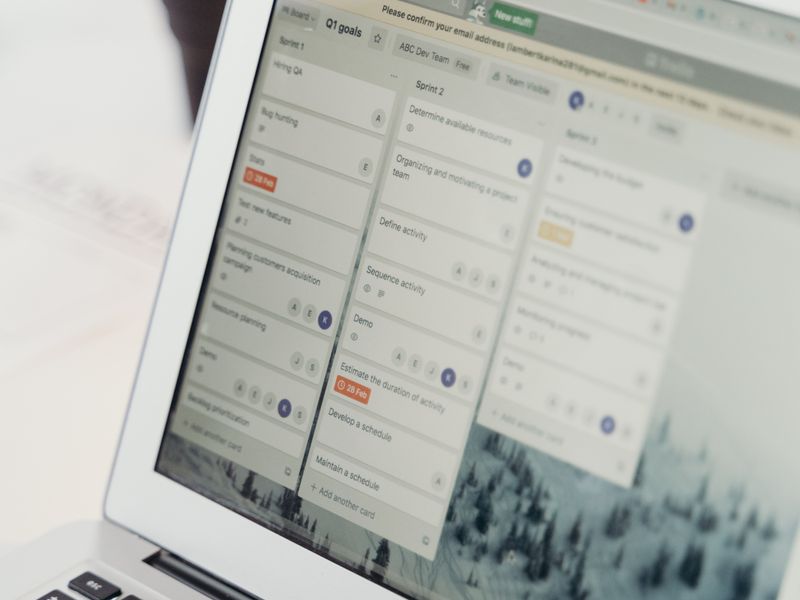
Close-up of a laptop screen
You don't need to be a programmer. Many automations use features already built into the tools you have, or simple no-code platforms. This guide shows how to find good candidates and build reliable automations step by step.
Step 1: Find Tasks Worth Automating
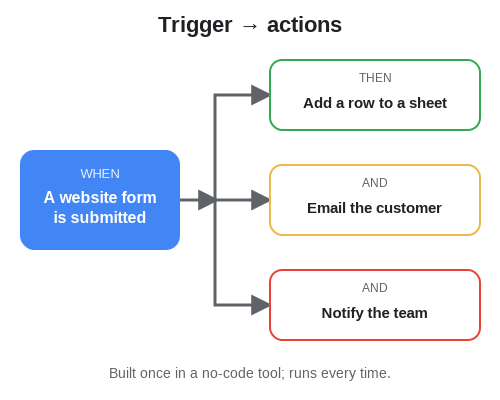
One trigger, several automatic actions
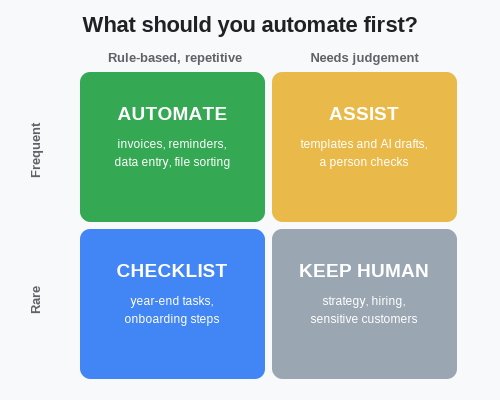
Frequent, rule-based tasks come first
- Frequent: done daily or weekly.
- Rule-based: the same steps every time, with clear "if this, then that" logic.
- Digital: information already lives in email, forms, spreadsheets, or apps.
- Error-prone when done by hand, such as copying numbers between systems.
A quick calculation helps: if a 10-minute task happens 5 times a week, that's over 40 hours a year. Spending a couple of hours automating it pays back quickly.
Step 2: Start With Built-In Quick Wins
- Email templates and rules: save replies you send often, and create filters that label, sort, or forward messages automatically.
- Calendar booking links: let clients pick a free slot instead of trading emails.
- Recurring tasks and invoices: most task apps and accounting tools can repeat them automatically and send payment reminders.
- Document templates: proposals, contracts, and reports with fields you fill in, rather than starting from scratch.
- Text expanders: type a short code to insert your address, standard answers, or signatures.
- Auto-save and sync: cloud storage that backs up files without you thinking about it.
Step 3: Let Spreadsheets Do the Work
- Formulas such as SUM, IF, and lookup functions (VLOOKUP or XLOOKUP) calculate totals and pull matching data automatically.
- Data validation and drop-down lists prevent typing errors.
- Conditional formatting highlights overdue dates or low stock instantly.
- Forms connected to sheets collect information in a consistent format without retyping.
- Macros and scripts can repeat multi-step actions for more advanced users.
Step 4: Build No-Code Workflows
No-code automation tools, such as Zapier, Make, or Microsoft Power Automate, connect different apps using a simple pattern: when something happens (trigger), do something (action).
1
Map the Process on Paper
Write each step as it happens today, for example: a customer fills in the website form, someone copies it into a spreadsheet, emails a confirmation, and tells the team.
2
Build and Test With Sample Data
Set the trigger (form submitted) and actions (add row, send email, post a team notification). Test with dummy entries before going live.
3
Monitor and Document
Check results for the first week, turn on error alerts, and write a short note explaining what the automation does and who owns it.
Step 5: Use AI and Automation Safely
- AI assistants can draft emails, summarise long documents, and suggest spreadsheet formulas, but a person should always review the output before it's used or sent.
- Protect sensitive data: check your organisation's policy before putting customer, financial, or personal information into any third-party tool.
- Use secure connections: strong passwords, two-factor authentication, and the minimum permissions an automation needs.
- Keep a human in the loop for payments, legal documents, and anything customer-facing that could cause harm if wrong.
- Avoid over-automating: complex chains that nobody understands become fragile. Simple automations are easier to maintain.
Five Automations Most Offices Can Use
- Invoice reminders: accounting software automatically emails customers before and after due dates.
- Lead capture: website enquiries flow into a spreadsheet or CRM and trigger a reply.
- File organisation: email attachments such as receipts save automatically to a named cloud folder.
- Meeting scheduling: booking links create calendar events and send reminders.
- Weekly reports: a spreadsheet pulls key numbers and emails a summary every Monday.
Pick one, build it, and measure the time saved over a month before adding more. Small wins build confidence and make the case for further automation.
Plan, Document, and Maintain Your Automations
Automations save time only when they keep working reliably. A little planning and maintenance stops them from becoming a source of new problems.
- Map the process first: write down each step of the manual task, including who does it, what triggers it, and what the result should be. Fix any confusing steps before automating them; automating a messy process just produces mess faster.
- Start with one small workflow: pick a frequent, simple task such as saving email attachments to a folder or sending meeting reminders.
- Test with sample data: run the automation on test records before using real customer or financial data.
- Document it: record what each automation does, which accounts it uses, and who to contact if it fails. Store this in a shared place.
- Use shared or team accounts: automations linked to one person's personal login can stop working when that person leaves or changes password.
- Add error alerts: most automation tools can email you when a step fails. Turn this on.
- Review quarterly: delete automations no one uses, update ones affected by changes to forms or software, and check permissions.
Measure the benefit. Note roughly how long a task took before automation and how long it takes now. These figures help you decide where to automate next and show colleagues and managers the value of the work.
Remember the human side too. Explain to colleagues what will change, ask for their input, and train them on new processes. People are more likely to embrace automation when they see it removes boring, repetitive tasks and frees time for more interesting work, rather than threatening their role.
Finally, keep data protection in mind. Only connect tools that your organisation has approved, give automations the minimum access they need, and never route sensitive personal data through unapproved third-party services.
Final Thoughts
Start by spotting frequent, rule-based tasks, use the automation already built into your email, calendar, and spreadsheets, then connect apps with simple no-code workflows. Test carefully, keep people in charge of important decisions, and protect data. A few small automations can free up hours every week.